
Why Shopify shows the wrong images when a shopper picks a variant (and how to fix it)
Shopify's product gallery shows every variant image at once, no matter which color or size a shopper picks. Here's why that happens and the cleanest way to fix it.

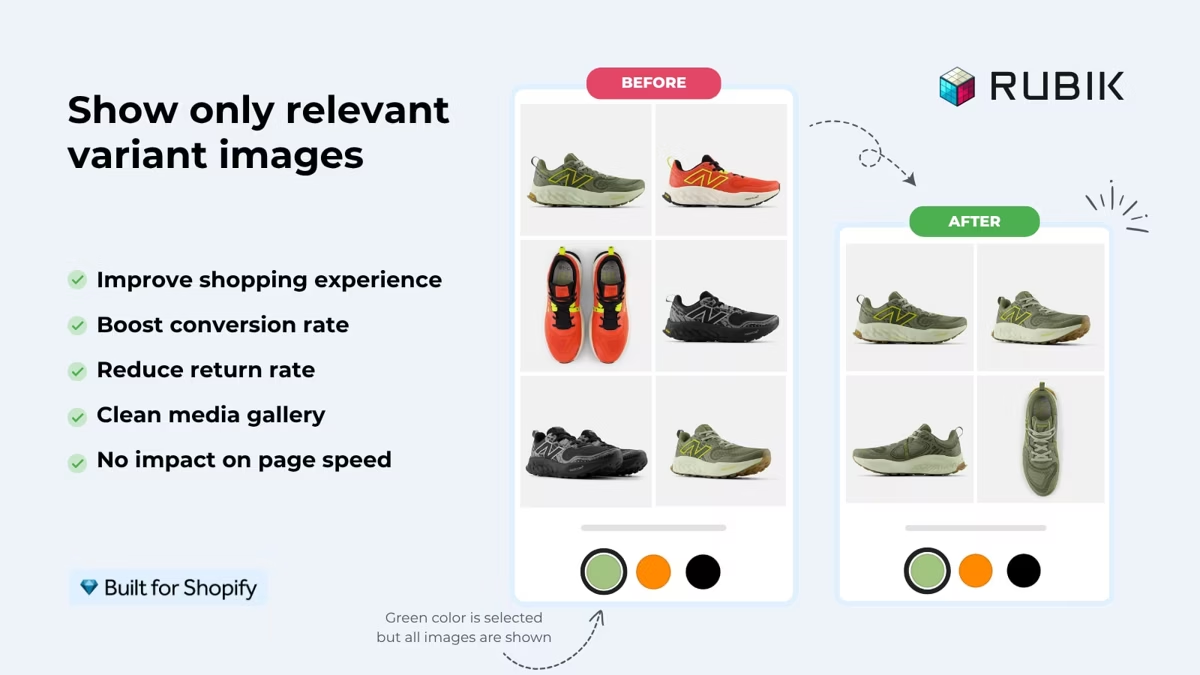
A customer lands on your product page and clicks Sage Green. The featured image swaps to a sage green photo, but the gallery below still shows the navy, the rust, and the cream. They scroll, hesitate, and try to figure out which photos belong to the variant they’re actually buying.
That hesitation costs you sales. A confused gallery is one of the most common reasons shoppers form the wrong expectation about what they’re buying, and the wrong expectation is one of the most common reasons they return it.
The frustrating part is that it isn’t a theme bug or something you set up wrong. It’s how Shopify’s product model works by default. The native fix takes you halfway but not the whole way, and below we’ll walk through what’s happening and what to do about it at scale.
What Shopify actually does with variant images
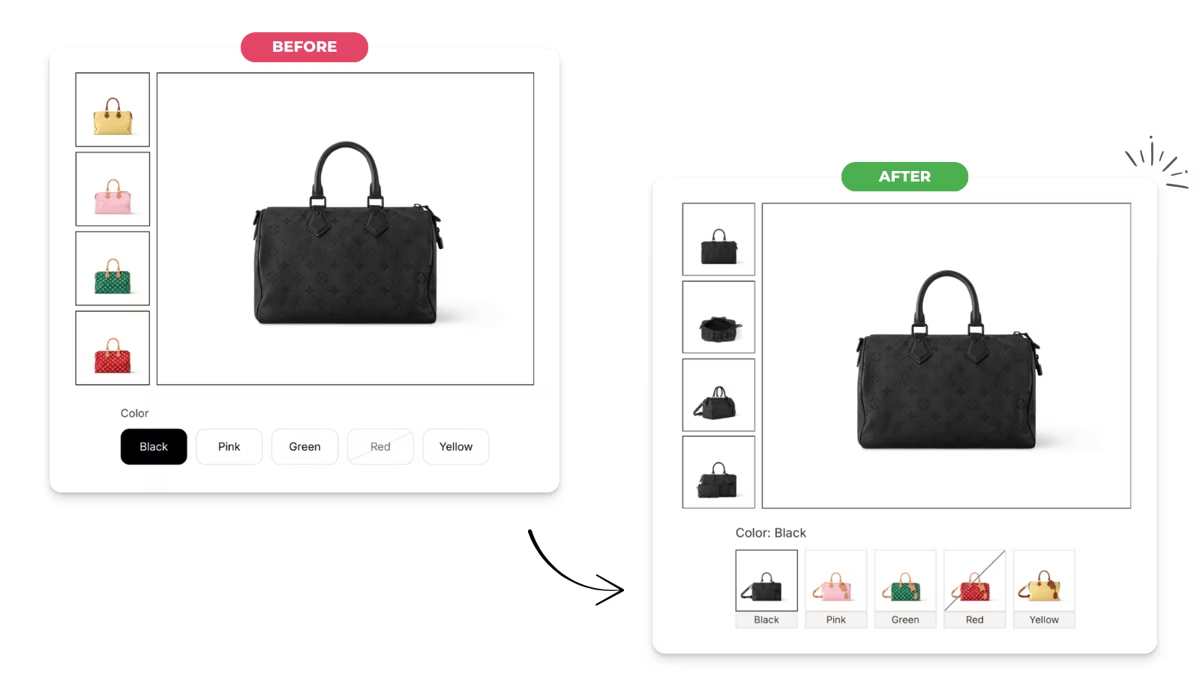
In Shopify, images belong to the product, not the variant. You can upload as many images as you want to a product, and you can link one image to a variant so it becomes that variant’s featured image. That’s it.
When a shopper picks Sage Green, the featured image at the top updates to the linked image. The thumbnails below don’t change. Every image you uploaded to the product is still sitting there.
For a single-option product with one image per color this is often fine. For anything more complex, say a product with three colors and three styles, or a color with five lifestyle shots, the gallery quickly becomes a wall of mismatched photos. Customers see a Sage Green hero followed by Rust Red, Navy, and Cream and they lose confidence in what they’re about to buy.
There’s no native setting to hide the other images and no way to filter the gallery on two options at once like color and style. A swatch picker on the product page isn’t built in either.
What a real fix needs to do
A real fix needs to do a few things the native admin can’t. It needs to support multiple images per variant and hide the ones that don’t match the current selection. It needs variant-aware swatches in the product page picker, and it needs to filter on more than one option at a time so picking Color and Style both narrow the gallery.
It also needs to stay theme-agnostic so you’re not paying a developer every time you switch themes. And it needs bulk setup, because assigning images variant-by-variant on a 500-SKU catalog is a non-starter.
What Rubik Variant Images does differently
Rubik Variant Images & Swatch (from Craftshift) is a clean fix for this. It has the Built for Shopify badge and a 5.0 rating across 370+ reviews.
A few reasons it stands out:
It handles the gallery the way customers expect. Pick a variant and the gallery filters down to only the images that belong to it. No leftover photos of other colors floating below the fold.
Multi-option support actually works. A lot of apps in this space only filter on one option (usually color), but Rubik lets a shopper pick color and style and the gallery responds to both. If you sell anything where two attributes have distinct imagery, this is the feature that matters.
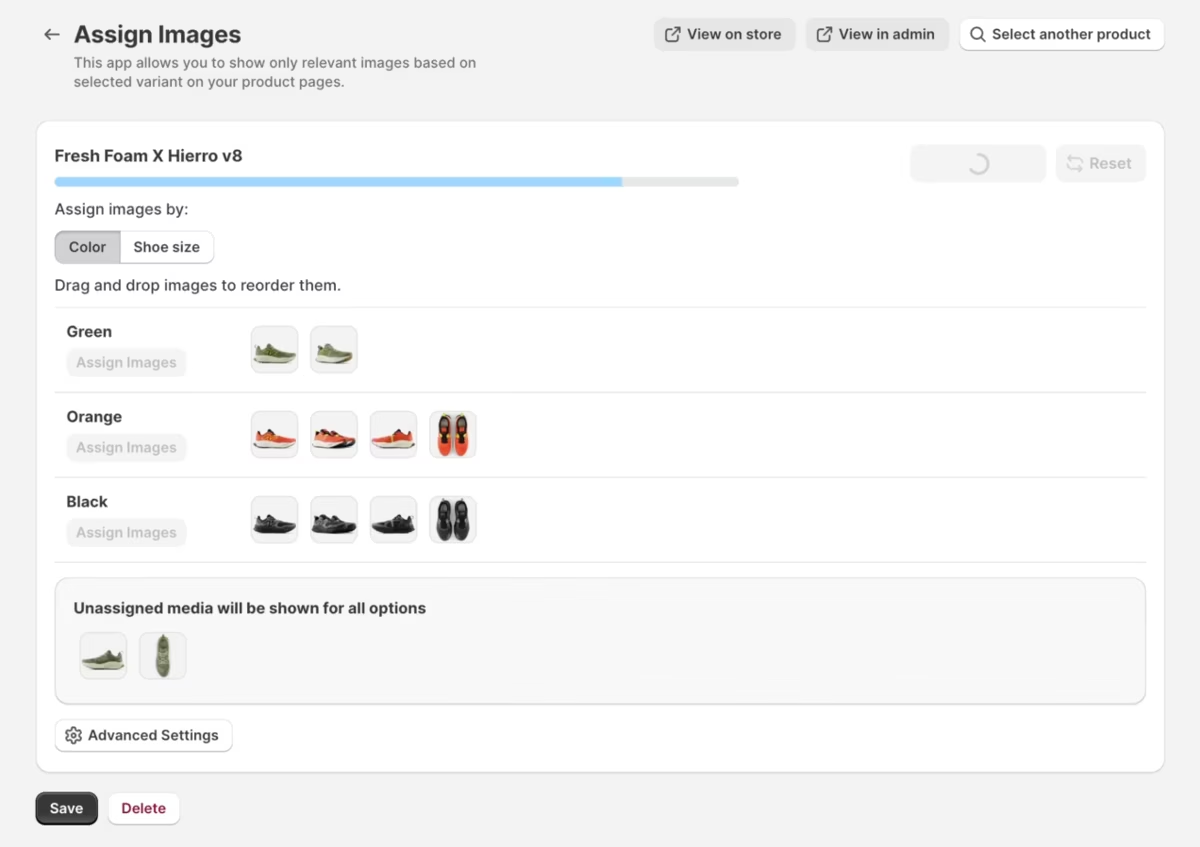
AI auto-assign cuts setup from hours to minutes. Rubik reads your filenames, alt text, and existing variant metadata to match images to variants. On a clean catalog where your filenames look like sweater-sage-green-front.jpg, it gets most assignments right on the first pass and you just confirm. We’ll come back to this because it’s exactly where Ablestar can save you a lot of prep time.
It works alongside other variant and option apps. Rubik is explicit about compatibility with 2048 Variants, Varia, VO Product Options, and page builders like PageFly, GemPages, and EComposer. If you’ve already extended your product model with another app, the gallery still works.
Theme compatibility is a first-class concern. Color and image swatches drop into the product page picker without touching code, and Rubik has put a lot of work into making sure the look fits each theme’s design. Craftshift publishes setup guides for popular themes like Impulse, Shrine, and Fabric, so the swatches match the rest of your store instead of looking bolted on.
Shopify native vs Rubik, side by side
| Shopify (native) | Rubik Variant Images | |
|---|---|---|
| Multiple images per variant | Featured only |  |
| Hide images that don’t match the variant |  | |
| Variant-aware swatches in picker | | |
| Filters on multiple options at once | | |
| AI auto-assign images to variants | | |
| Video / 3D model variant support | Limited | |
| Works alongside 2048 Variants and option apps | N/A | |
| Bulk setup across a large catalog | | |
Pricing and the free plan
Rubik’s pricing is straightforward and the free plan is good for seeing the functionality.
- Free. 1 product, 50 AI auto-assignments per month. Enough to wire up your most-viewed product and see what changes.
- Starter, $25/mo (or $200/yr). Up to 100 products, 500 AI auto-assignments per month.
- Advanced, $50/mo (or $400/yr). Up to 1,000 products, 5,000 AI auto-assignments per month.
- Premium, $75/mo (or $600/yr). Unlimited products, 50,000 AI auto-assignments per month.
All paid plans include the full feature set including swatches, multi-option support, theme setup help, and live-chat support. Annual billing knocks roughly a third off the monthly price.
Quick reality check on ROI. If cleaning up your variant gallery saves you one returned order a month, counting shipping each way and the item itself, the Starter plan has paid for itself.
Getting your catalog Rubik-ready with Ablestar
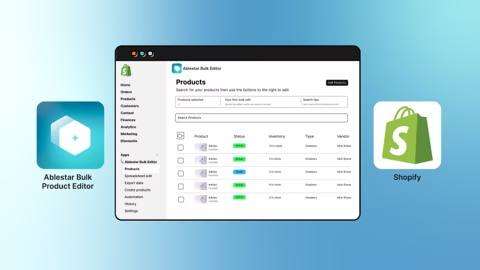
Rubik’s AI auto-assign is good but it’s only as good as the metadata it works from. A clean catalog gets cleaner assignments, and a couple of bulk passes through Ablestar Bulk Product Editor before you turn Rubik on tend to pay for themselves quickly.
A few things worth doing first:
Normalize your variant option values. “Sage Green”, “sage green”, “Sagegreen”, and “Lt Green” are four different variants to Shopify, your theme, your filters, and any swatch app reading them. Ablestar does find-and-replace across thousands of variants in one operation, so every Sage Green ends up spelled the same way.
Bulk alt text. Rubik’s AI uses image alt text to match photos to the right variant, alongside filenames and metadata. Setting something descriptive on every image, like “sage green crewneck sweater, front view”, gives the AI a clear signal. Ablestar fills alt text across every product image in one pass with preview and undo, and it doubles as SEO and accessibility work you’d want to do anyway.
Fill in swatch metafields. If your theme’s swatch picker reads a color-family or hex-code metafield, populate it once across every product instead of one product at a time. Ablestar previews the change first and lets you roll it back with a click.
Schedule your color drops. When you’re launching a new variant or seasonal color, you can stage the changes (new variants, prices, tags, alt text) and schedule them to flip live at a specific time. Pair with Rubik’s variant gallery and the drop looks complete from minute one.
Zooming out: Shopify’s 2048-variant limit is rolling out, which means more merchants combining many products into one mega-variant product. That cleans up your collection pages but it makes the gallery harder. Ablestar for data prep and Rubik for display is the natural pairing.
Setting up Rubik in five minutes
The setup is short, so trying it on one product is the fastest way to see what changes.
- Install Rubik from the Shopify App Store.
- Open the app and pick a product to start with. The free plan covers one, so use your highest-traffic SKU.
- Choose how to assign images. You can let the AI auto-match based on filenames and alt text, or drag images onto variants manually.
- Pick a swatch style (color, image, or text) and choose whether to show it on the product page only or on collection pages too.
- Save and preview. Click between variants on the live product page and the gallery and swatches should update together.
If the AI gets an assignment wrong you correct it in the app, and Rubik remembers your preference for future imports. This is the moment where good alt text really pays off.
FAQ
Does this work with any Shopify theme? Craftshift has put real work into theme compatibility. Rubik has been tested on a long list of themes including Dawn, and they publish per-theme setup guides for many popular ones like Horizon, Impulse, and Shrine. If your theme isn’t covered or has unusual product-page markup, their support team will help wire it up on any plan.
Will adding it slow down my product pages? Rubik loads variant data once and updates the DOM client-side, so picking a swatch doesn’t trigger a page reload.
Does it work with combined listings or 2048-variant products? Yes. Rubik works with combined listings and with high-variant-count products. This is actually where it shines. Combining products to take advantage of the 2048-variant limit creates more variants per page, which makes a smart gallery more important, not less.
Can I keep using Shopify’s built-in “image per variant” setting? You can, but you don’t need to once Rubik is set up. If you’ve already linked featured images on variants, Rubik picks that up as a starting point. After that, manage everything from Rubik so you don’t have two sources of truth.
What about videos and 3D models? Rubik handles videos and 3D models the same way it handles images. You assign them to specific variants and they only show up when that variant is selected.
Is there a free trial? There’s a permanent free plan that covers 1 product and 50 AI auto-assignments per month. That’s enough to set it up on a high-traffic SKU and judge the impact before you upgrade.
What if my colors are already set up as separate products? If each color is a standalone product (rather than variants of one product) and you’d rather link them with swatches than rebuild as a single product, Craftshift’s companion app Rubik Combined Listings Swatch handles that case.
Where to start
If you want to see the difference on your own store, install Rubik on the free plan and wire it up on one product. The setup takes a few minutes and you can see the gallery behavior change in real time. If your image alt text and metafields need cleanup first, Ablestar handles that in bulk before you ever pay for Rubik.