

How to bulk edit prices on Shopify in 2026: percentages, rounding, markets and sales
How to change prices on many Shopify products at once in 2026, from the built-in bulk editor and CSV import to percentage changes, rounding to .99, prices for one market, prices from cost, and sales.
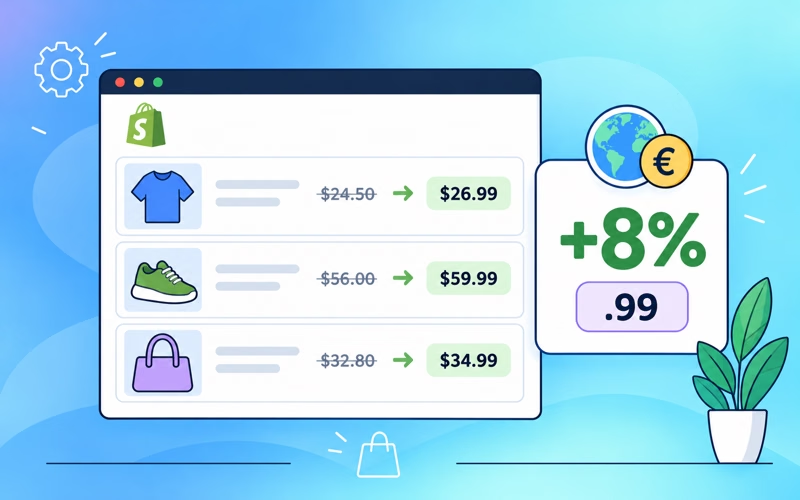
To bulk edit prices on Shopify, select the products in Products, click Bulk edit, and type the new prices into the Base price and Compare-at price columns. That works when you know each new price. Shopify’s bulk editor has no option to change prices by a percentage, round them to .99, or set them from cost, and there is no undo. For those jobs you can export a CSV and use spreadsheet formulas, or use an app that calculates the new prices for you, shows a preview, and lets you undo the change.
This guide covers each way to do it in 2026, with the common price jobs: raising prices by a percentage, rounding, changing prices for one market only, pricing from cost, and running a sale.
How do you edit prices in Shopify’s built-in bulk editor?
- In the Shopify admin, go to Products and filter or search for the products you want to change.
- Select them and click Bulk edit.
- Click Columns and add Base price, Compare-at price and, if you track it, Cost per item.
- Type the new values. To copy one value to the cells below it, drag the cell’s fill handle.
- Click Save.
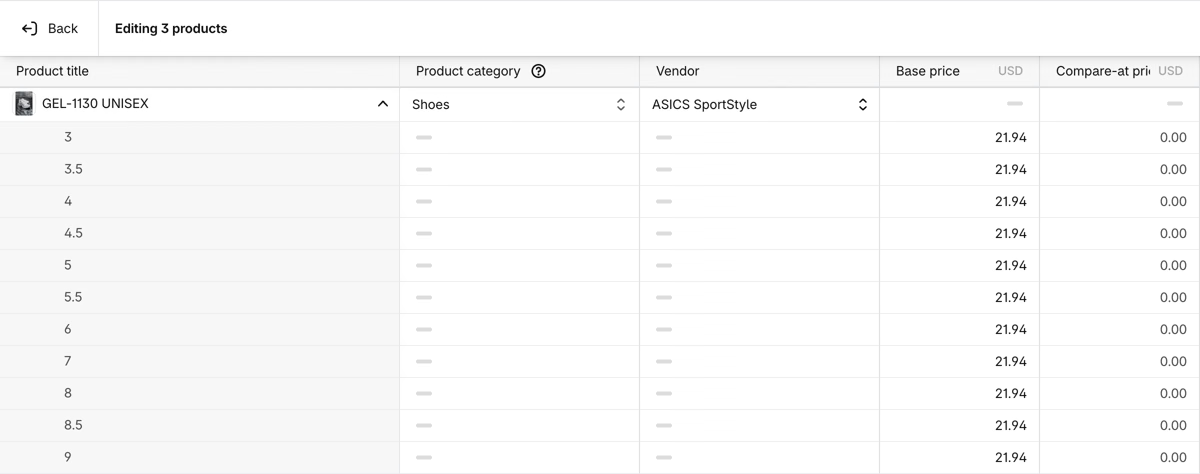
This is fine for a few products, or when you have the new prices in front of you. It gets slow when the new price depends on the old one:
- There’s no percentage or formula. To raise prices by 8%, you work out every new price yourself and type it in.
- There’s no rounding. If you want prices to end in .99, you type that too.
- Every variant has its own row. A product with 20 sizes is 20 rows to change.
- There’s no undo. After you click Save, the old prices are gone unless you exported them first.
- It changes base prices only. Market prices that are set in a catalog aren’t in the bulk editor (more on that below).
Can you bulk edit prices with a CSV file?
Yes. Export the products from Products > Export, change the Price and Compare-at price columns in a spreadsheet, and import the file again with Overwrite products with matching handles selected. A spreadsheet gives you what the bulk editor doesn’t have: formulas. For example, =ROUNDDOWN(B2*1.08,0)+0.99 raises a price by 8% and makes it end in .99.
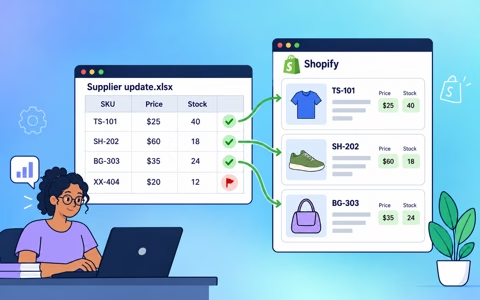
Two things to watch for. Shopify matches rows by URL handle, not by SKU, and an import overwrites every column that is in the file, so a blank cell or an old value in another column goes straight to your store. Keep only the columns you need, and keep a copy of the export so you can import it again if something goes wrong. We cover this in detail in updating Shopify from a spreadsheet.
How do you raise or lower prices by a percentage?
Shopify has no built-in way to do this outside a spreadsheet. In Ablestar Bulk Product Editor it’s one edit:
- In the app, open Products and filter the products, for example Vendor contains ASICS. You can filter by collection, vendor, tag, product type, price, cost, inventory and more, and combine filters.
- Click Edit products.
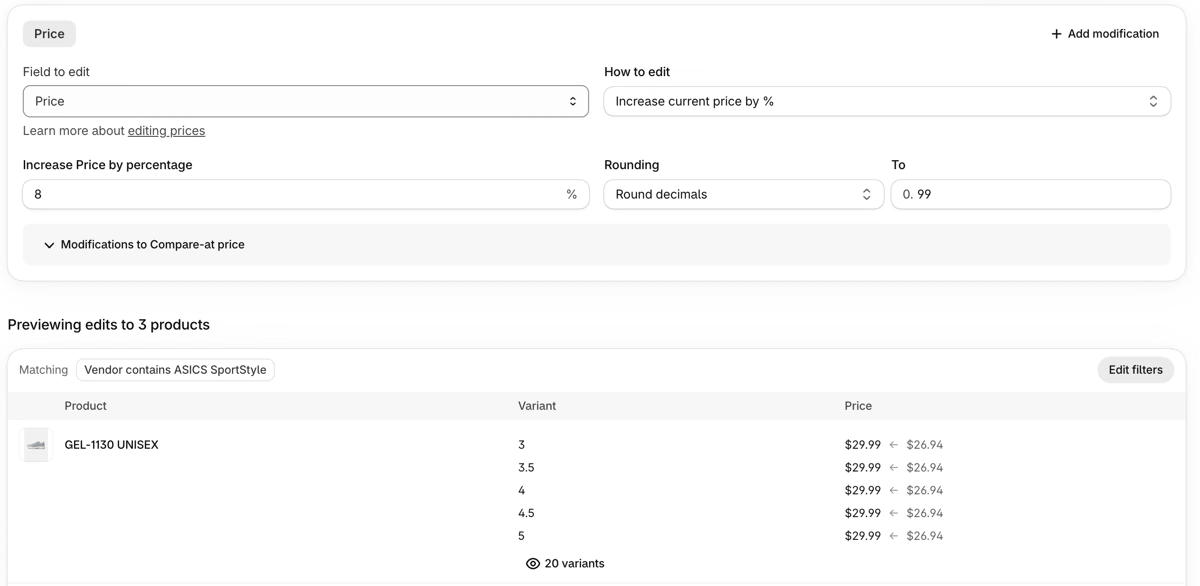
- Under Field to edit, select Price. Under How to edit, select Increase current price by % (or Decrease current price by %) and enter the percentage.
- Optional: under Rounding, select Round decimals and enter 99 so every new price ends in .99.
- Check the preview. It shows the new and the old price for every variant.
- Click Run edit.
If you need to change by a fixed amount instead, select Change by fixed amount and enter a positive or negative number. When the edit is done you can find it under History and click Undo to put every price back to the value it had before.
Raising prices is also a customer question, not just a data job. We wrote about how to raise prices without losing customers.
How do you round all prices to .99 at once?
Pick a Rounding option next to any percentage change. To round prices you already have without changing them, use Increase current price by % with 0% and a rounding option. The options that cover most stores:
| Rounding option | Example |
|---|---|
| Round decimals to 99 | 12.22 becomes 12.99 |
| Round decimals to 95 | 12.22 becomes 12.95 |
| Replace last digit(s), rounding up with 9 | 71.50 becomes 79.00 |
| Round to nearest multiple of 5 | 12.40 becomes 10.00 |
| Drop decimals | 99.99 becomes 99 |
Round decimals keeps the whole number and only changes the cents, so it can move a price up or down by a few cents. See rounding prices in bulk for all ten options.
How do you change prices for one market or currency only?
If you sell in more than one market, Shopify gives each market a catalog with two ways to set prices:
- A percentage adjustment raises or lowers every price in the catalog, for example 10% higher in the European Union. It follows your base prices, so when you change a base price, the market price changes with it.
- Fixed prices set an exact price (and compare-at price) for a product in that catalog. A fixed price overrides the percentage adjustment and the base price, and Shopify doesn’t convert or round it.
Fixed prices and percentage adjustments per market work on every Shopify plan. To show prices in local currencies you need Shopify Payments. You set fixed prices product by product in the catalog, or with a catalog CSV.
When you need fixed prices for many products in one market, for example every product from one vendor at 110% of the base price in euros, Bulk Product Editor can set them in one edit:
- Filter the products and click Edit products.
- Under Field to edit, type the market name and select it from the Market/Catalog Price group, for example European Union.
- Under How to edit, select Set fixed price.
- Under Price in EUR, select Set to % of the base price and enter the percentage. You can also select Set to fixed value, Set to % of the base cost or Set to % of the base compare-at price.
- Optional: pick a Rounding option, for example Round decimals to 95.
- Do the same for Compare-at Price in EUR if you show sale prices in that market, check the preview, and click Run edit.
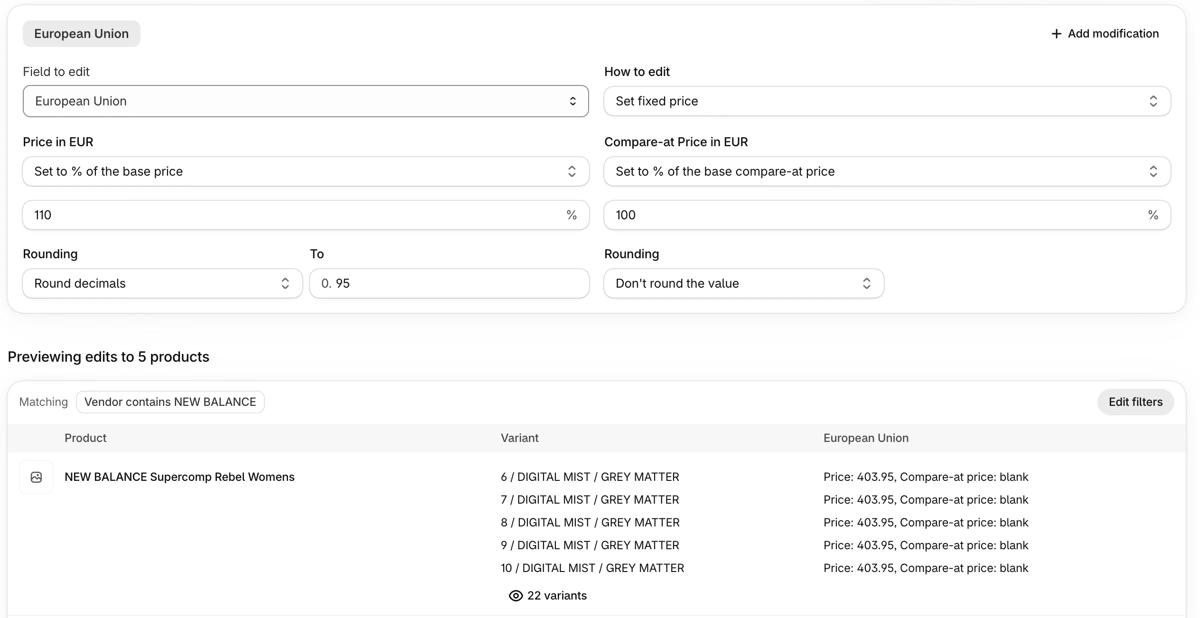
The percentage is applied to the number, with no exchange rate: 110% of a $366.95 base price is €403.95. To send a product back to the market’s normal percentage adjustment, use Clear fixed price.
How do you set prices from cost?
Shopify shows the profit and margin for each variant on the product page, but it can’t set a price from the cost. In Bulk Product Editor:
- Under Field to edit, select Price.
- Under How to edit, select Set to % of the Cost and enter the markup. 200% is cost times two, 250% is cost times two and a half.
- Optional: add rounding so the new prices end in .99.
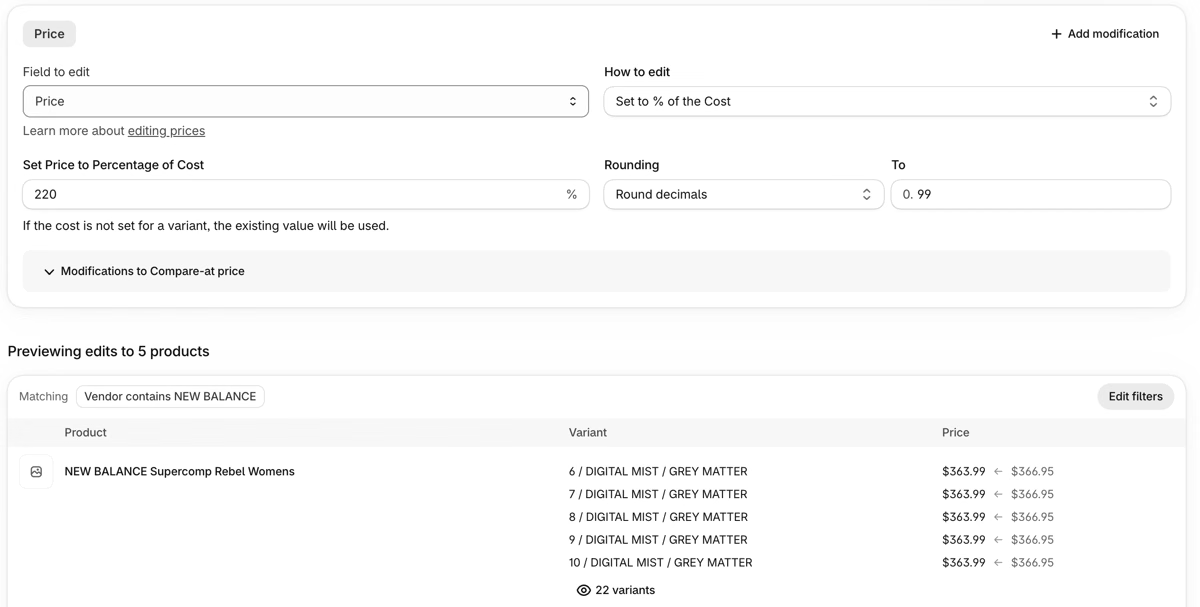
To add a fixed amount to the cost instead, select Set as Cost plus amount. Variants with no Cost per item are skipped and shown in the edit log, so add the cost first. You can also edit Cost per item in bulk, for example from a supplier file.
How do you put products on sale, or change a sale that’s already running?
A sale that shows the crossed-out price on product pages needs two changes on every variant: the old price goes into Compare-at price, and the price goes down. In Bulk Product Editor that’s one edit: Decrease current price by %, then open Modifications to Compare-at price and select Set the compare-at price to the current price. You can schedule the start and the undo, so the sale ends by itself. We compare this with automatic discounts, Rollouts, Launchpad and Flow in timed sales on Shopify.
To change a sale that’s already running, don’t take another percentage off the current price, because that discounts the sale price again. Instead:
- Filter with Price < Compare-at Price to find the products that are on sale.
- Under How to edit, select Set to % of the Compare-at price. For 30% off, enter 70.
- Check the preview. Variants without a compare-at price are skipped.
This sets every sale price from the original price, so every variant ends up with the same discount, however many times the sale was changed before.
To end a sale, undo the edit that started it under History. That puts back the price and compare-at price each variant had before the sale. If the sale wasn’t started with one edit, edit Compare-at Price, open Modifications to Price and select Set the price to the current compare-at price (if not blank). Then clear the compare-at prices with a second edit: Compare-at Price, Set to null/blank.
Which way should you use?
| Shopify bulk editor | CSV import | Focused price apps | Bulk Product Editor | |
|---|---|---|---|---|
| Change by a percentage |  | With formulas |  | |
| Round to .99 or .95 | | With formulas | Most apps | |
| Fixed prices for one market | | Catalog CSV | Most apps, often on higher plans | |
| Set prices from cost | | With formulas | Some apps | |
| Preview before it changes | You see what you type | | Varies | |
| Undo | | Import the old file | Most apps (revert) | |
| Schedule a sale and its end | | | | |
| Other fields (tags, inventory, metafields, …) | | | Price fields only | |
| Cost | Free | Free | Free plans, paid about $8 to $20/month | Free for 10 products per edit, Basic $30/month |
Some quick rules of thumb:
- A few products, and you know the new prices: use Shopify’s bulk editor.
- A one-time change you’re comfortable doing in a spreadsheet: use a CSV, and keep the export as your backup.
- You only ever change prices: a focused price app is a good fit. Apps such as NA Bulk Price Editor and SA Bulk Product Editor & Price start at about $10/month, and their free plans cover around 100 price changes a month or 100 products per task.
- You change prices and other product data, or you can’t afford a mistake: use a bulk editor with preview and undo. With Bulk Product Editor the same plan also covers tags, inventory, metafields, SEO fields and spreadsheet imports, so you don’t need a second app for those.
Percentage changes, rounding, market prices, preview and undo are on every plan of Bulk Product Editor. The free plan edits up to 10 products per edit, so you can try a price change on a few products first. Basic ($30/month) removes the product limit, and recurring edits start on Advanced ($60/month). See all plans.
Before you change prices in bulk
- Test on a few products first. Run the change on two or three products, check them in the admin and on the storefront, and undo it.
- Check your market prices. A base price change reaches markets that use a percentage adjustment, but not variants with a fixed price in that market’s catalog.
- Selling in the EU? If you show a sale price, the reference price has to be the lowest price of the last 30 days. Bulk Product Editor has Set to lowest price from last x days for this, see managing the European Price Indication Directive.
- Keep a record. Bulk Product Editor keeps the old and new value of every change in History and has a price history for each product.
Frequently asked questions
Can Shopify change prices by a percentage without an app?
Not in the bulk editor. You can export a CSV, calculate the new prices with a formula in a spreadsheet, and import it again. For markets, a catalog’s percentage adjustment raises or lowers every price in that market, but it doesn’t change your base prices.
How do I bulk edit compare-at prices?
In Shopify’s bulk editor, add the Compare-at price column and type the values. In Bulk Product Editor, select Compare-at Price under Field to edit and use any of the same options as for price, for example Set to % of the Price to set the compare-at price to 125% of the price.
How do I undo a bulk price change?
Shopify has no undo for the bulk editor or CSV imports, so you need the export you took before the change. In Bulk Product Editor, open the edit under History and click Undo. We cover this in can you undo a bulk edit in Shopify.
Can Sidekick change prices in bulk?
Shopify’s Sidekick can edit products, but Shopify doesn’t document bulk price changes with it. If you have Bulk Product Editor installed, you can ask Sidekick something like “raise prices by 10% for the Summer collection and round to .99”. Sidekick makes a Bulk Product Editor preview, and you open it and click Run edit yourself. See using Sidekick with Bulk Product Editor.

Related articles
Updating Shopify from a spreadsheet: what CSV import overwrites and how to update only what you need
Written by Ablestar

Can you undo a bulk edit in Shopify? How to recover and how to make bulk changes safely
Written by Ablestar
Timed sales on Shopify: compare-at prices vs automatic discounts vs scheduled price changes
Written by Ablestar