
Timed sales on Shopify: compare-at prices vs automatic discounts vs scheduled price changes
The ways to run a sale that starts and ends on its own in Shopify, what each one shows shoppers, and when to use automatic discounts, Rollouts, Launchpad, Flow, or a scheduled bulk price edit.

If you want a sale to start on Friday and end on Monday without anyone touching the store over the weekend, Shopify gives you a few options. An automatic discount with a start and end date is the simplest, but shoppers only see the crossed-out price in the cart and at checkout. If you want the sale price and the crossed-out original price on your product and collection pages, you need to change the price and compare-at price fields, and then you need something to change them back. In 2026 that can be Shopify’s new Rollouts (for catalog prices), Launchpad (Shopify Plus only), Shopify Flow (with some API work), or a bulk editing app that schedules the edit and the undo.
This guide goes through each option in 2026, what shoppers see with each one, and which one fits which kind of sale.
Two ways Shopify shows a sale
Before you pick a tool it helps to know that Shopify has two separate ways to show a sale, and they look different to shoppers.
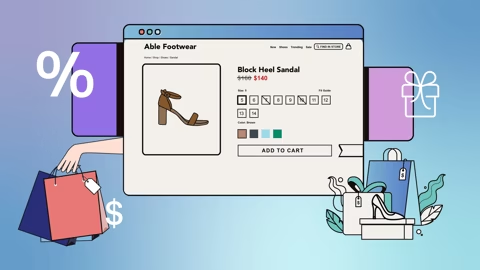
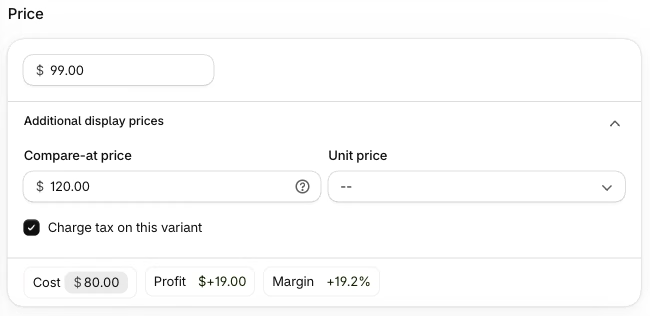
Compare-at price. Every variant has a Price and a Compare-at price. When the compare-at price is higher than the price, most themes show the price as the sale price and the compare-at price crossed out. This shows on product pages and collection pages. The customer pays the price, so the price field is the one that has to change when the sale starts.
Discounts. Automatic discounts and discount codes don’t change the product price. The discount is applied in the cart and at checkout. Shopify shows the savings with a crossed-out price at checkout, but to show it on product and collection pages you need a third-party discount app.
So the question is really this: do shoppers need to see the sale while they browse, or is it fine if they find out in the cart? For a big promotion like Black Friday you usually want it visible on collection pages. For a “20% off this weekend” banner sale a discount can be enough.
Option 1: Automatic discounts with a start and end date
This is the built-in way to run a timed sale and it works on every plan.
- In the Shopify admin, go to Discounts and click Create discount.
- Select Amount off products.
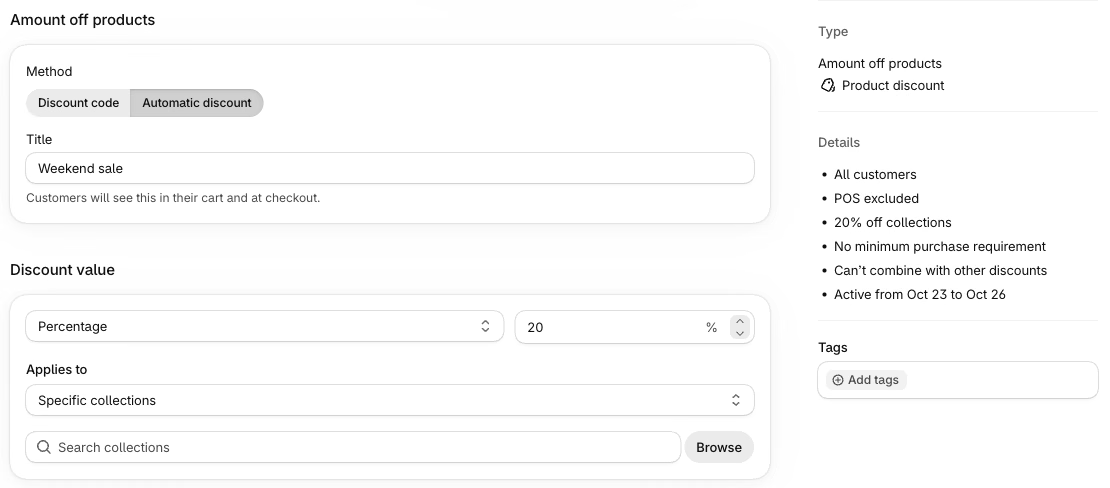
- Under Method, select Automatic discount and give it a title. Customers see the title in the cart and at checkout.
- Under Discount value, enter the percentage and choose the collections or products it applies to.
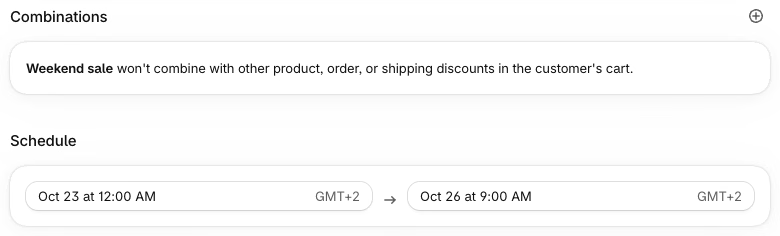
- Under Schedule, set the start date and time and the end date and time.
- Click Save.
What’s good about it:
- It starts and ends on its own, in your store’s time zone.
- Your product prices never change, so there’s nothing to put back afterwards.
- Percentage discounts work the same in every currency, and you can assign a discount to specific markets.
What to watch out for:
- Shoppers don’t see the crossed-out price on product or collection pages without a discount display app.
- You can have up to 25 active automatic discounts, and that number includes discounts created by apps.
- Combination rules decide whether your sale stacks with other discounts and discount codes. Check them before the sale starts so a customer doesn’t get 20% off on top of a 15% code you didn’t plan for.
Option 2: Change the price and compare-at price
If you want the sale visible on every product and collection page, you change the variant prices. For a sale that means two changes on every variant:
- Copy the current price into the Compare-at price field.
- Lower the Price by your discount, for example 20%.
You can do this in Shopify’s built-in bulk editor by adding the Price and Compare-at price columns, or by exporting a CSV, changing the prices in a spreadsheet, and importing it again. The bulk editor is fine for a few dozen products, but you type or paste each value yourself. A spreadsheet lets you use a formula for the percentage and for rounding to .99, but CSV imports overwrite whole columns, so a mistake in the file goes straight to your store.
The bigger problem is the end of the sale. Shopify has no undo for bulk edits or CSV imports, and nothing native that changes base product prices at a set time. Someone has to put the old prices back on Monday morning, usually by importing the export they hopefully took before the sale started.
Option 3: Rollouts (scheduled catalog changes)
Rollouts are newer. Shopify added them in March 2026 and they’re available on the Basic plan and up. A rollout schedules changes that you prepare ahead of time, and an Event rollout publishes the changes for a set period and then rolls them back when it ends. Since October 2026 rollouts can also turn discounts on and off.
The catch is what a rollout can change. It switches a catalog to active or draft, or turns discounts on and off. It doesn’t edit the price and compare-at fields on your products. So for a price sale you first build a catalog with the sale prices (a percentage adjustment or fixed prices, and compare-at prices can be set in the catalog too), and the rollout turns that catalog on and off. If you already sell in several markets and manage prices through catalogs, this fits well. If all your pricing lives on the products themselves, it’s an extra layer to set up and keep in sync.
A catalog or discount can only be in one unfinished rollout at a time, so plan overlapping promotions carefully.
Option 4: Launchpad and Shopify Flow
Launchpad is only available on Shopify Plus. It schedules an event that can change product prices, publish products, and switch themes, and at the end it changes compare-at prices back to their pre-sale values. Events can’t overlap and collections in an event are limited to 1,000 products. Also, if you edit a product’s price during an event, it goes back to the pre-event price when the event ends.
Shopify Flow is free on Basic and up and has a Scheduled time trigger, so you can start a workflow on Friday and another one on Monday. But Flow has no built-in action for changing prices. You use Send Admin API request with a GraphQL mutation, and the Get product data action returns up to 100 products at a time. It works if you’re comfortable with the Shopify API, and it’s a lot of setup for a one-off weekend sale.
Option 5: Schedule the price change and the undo in a bulk editor
This is the approach we built into Ablestar Bulk Product Editor for weekend and holiday sales. You set up the price change once, preview it, and schedule both the start and the undo.
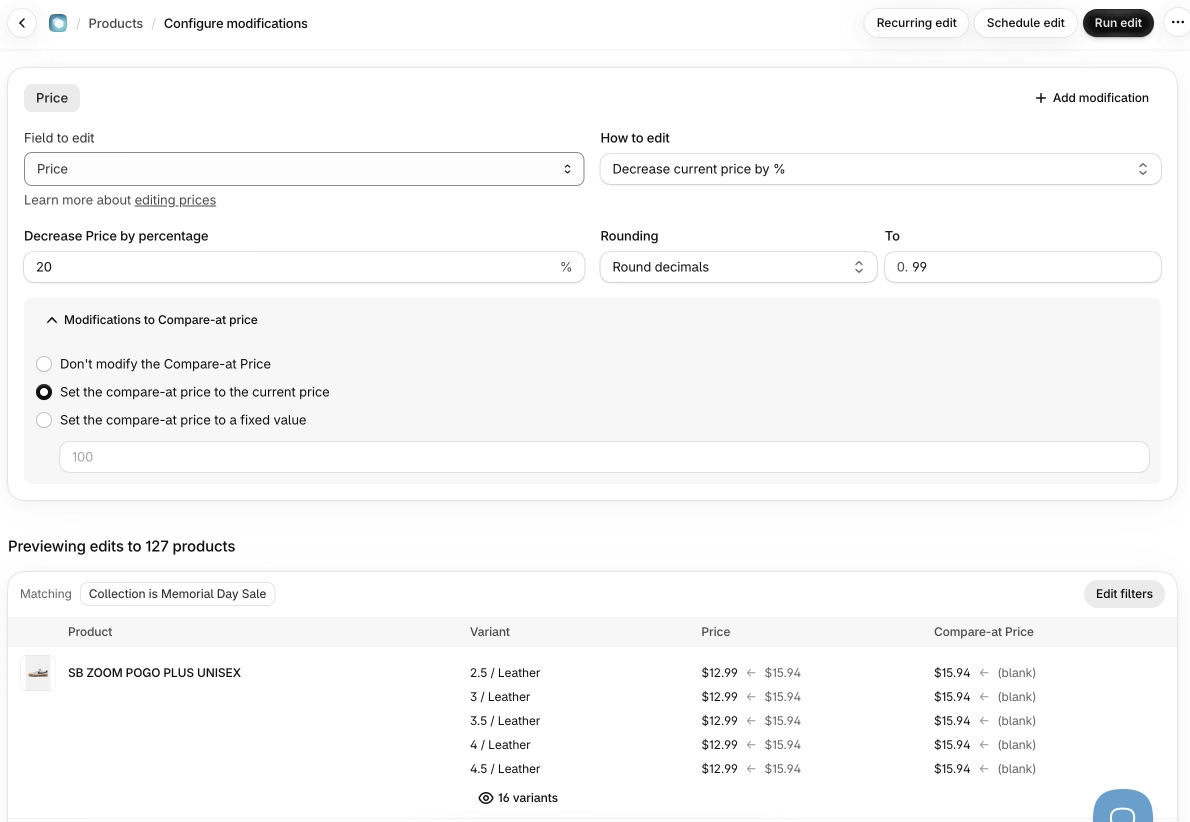
- In the app, open Products and filter the products for the sale, for example Collection is Memorial Day Sale. You can combine filters like vendor, tag, product type, or inventory.
- Click Edit products.
- Under Field to edit, select Price. Under How to edit, select Decrease current price by % and enter the percentage.
- Optional: under Rounding, select Round decimals and enter .99 so the sale prices end in .99.
- Open Modifications to Compare-at price and select Set the compare-at price to the current price.
- Check the preview at the bottom of the page. It shows the old and new price and compare-at price for every variant before anything changes.
- Click Schedule edit. Select Start the edit at a scheduled time and Undo the edit at a scheduled time, and set both dates and times.
- Click Schedule.
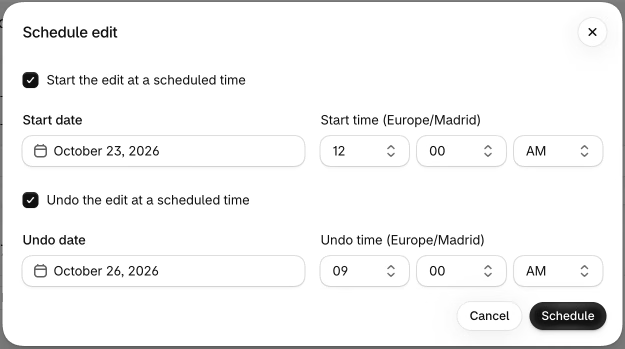
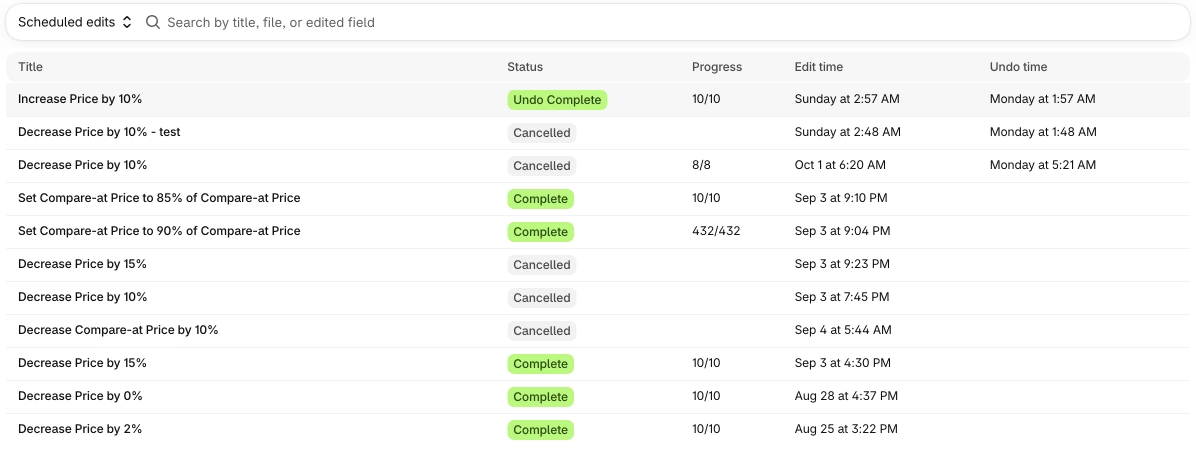
On Friday the prices drop and the compare-at prices are set, so your theme shows the sale everywhere. On Monday the undo puts every price and compare-at price back to the value it had before the sale. You can see the start and undo times of every scheduled sale under History, and you can change the times or cancel the sale until it starts.
A few things we’ve learned from merchants running a lot of these:
- Base the sale price on the compare-at price if sales overlap. If two sales run back to back on the same products, a second “decrease by 15%” takes 15% off the already discounted price. Setting the price to a percentage of the compare-at price avoids the double markdown. We cover this in how to avoid duplicate markdowns.
- Don’t change sale prices by hand during the sale. The undo sets each field back to its value from before the edit, so a manual price change made during the sale is overwritten when the sale ends. Launchpad works the same way.
- The filter runs when the edit starts. A product that no longer matches your filter on Friday isn’t included, and a product you add to the collection before Friday is.
Scheduled edits with a scheduled undo are part of the Basic plan ($30/month). The free plan also lets you schedule edits, with up to 10 products per edit, so you can test the whole flow on a few products first. If you run the same sale every week or month, recurring edits are on the Advanced plan. See all plans.
Which option should you use?
| Automatic discount | Edit prices by hand / CSV | Rollouts | Launchpad | Flow | Scheduled bulk edit + undo | |
|---|---|---|---|---|---|---|
| Crossed-out price on product and collection pages | Needs an app |  | | | | |
| Starts at a set time | |  | | | | |
| Ends and restores prices on its own | | | | | Build it yourself | |
| Changes the product price and compare-at fields | | | Catalog prices only | | | |
| Plan | All plans | All plans | Basic and up | Plus only | Basic and up | App (Basic plan $30/month) |
Some quick rules of thumb:
- A sitewide or collection discount where the cart is enough: use an automatic discount. It’s free and nothing needs to be put back.
- A sale that shoppers should see while they browse: change the price and compare-at price, and schedule the undo so you don’t have to remember it.
- You sell in several markets and manage prices in catalogs: look at Rollouts.
- You’re on Shopify Plus and already use Launchpad: it covers most timed sales.
- The same sale every weekend or every month: use a recurring edit or a Flow workflow.
Before the sale starts
- Test on a few products first. Run the edit on two or three products, check the product page, and undo it.
- Check that your theme shows compare-at prices. Most do, but some themes hide them on collection pages.
- Selling in the EU? Under the Price Indication Directive, the reference price for a price reduction has to be the lowest price you charged in the last 30 days. Bulk Product Editor tracks price changes and has a Set to lowest price from last x days option for this, see managing the European Price Indication Directive.
- Check your market prices. If a market uses fixed prices in a catalog, those override the prices and compare-at prices set on the product, so a base price change doesn’t reach that market.
- Write down what’s running. Overlapping discounts, scheduled edits, and rollouts on the same products are the most common reason a sale ends up deeper than planned.
Frequently asked questions
Can Shopify schedule a price change without an app?
Partly. Automatic discounts and discount codes have start and end dates. Rollouts (Basic plan and up) can schedule catalog price changes and roll them back, and Launchpad (Plus only) can schedule product price changes. There’s no native way to schedule a change to the price and compare-at fields on your products themselves.
Do automatic discounts show a sale price on the product page?
Not by default. The discount is applied in the cart and at checkout, where Shopify shows the crossed-out price. To show it on product and collection pages you need a discount display app or a sale based on compare-at prices.
How do I put prices back after a sale?
With an automatic discount there’s nothing to put back. If you changed the prices, you need the old values: an export from before the sale, a Launchpad event or Event rollout that restores them, or a bulk edit undo. In Bulk Product Editor you can schedule the undo when you schedule the sale, or click Undo on the edit in History at any time within your plan’s history period.
What happens to a price I change by hand during a scheduled sale?
When the sale ends, the undo sets the price back to its value from before the sale, so the manual change is overwritten. Launchpad does the same. If you need a different price during the sale, make that change after the sale ends, or undo the sale and schedule a new one with the right prices.