

Shopify product tags in bulk: add, remove, and clean up tags without overwriting (2026)
How to add and remove product tags on many Shopify products at once without losing the tags they already have, which tools replace the whole tag list, and how to rename and clean up tags across your store.
To add a tag to many Shopify products without overwriting their other tags, select the products in Products, open the … menu, and click Add tags. Shopify adds the tag and keeps the tags each product already has. The tools that do overwrite tags are the bulk editor’s Tags column and a CSV import, because there the tag list is one value that is replaced as a whole. For anything beyond adding and removing a tag on the products you selected, such as renaming a tag on every product, tagging by vendor or inventory, or tagging new products automatically, you need Shopify Flow or an app.
This guide covers each way to edit tags in bulk in 2026, which ones keep your existing tags, and how to clean up a tag list that has grown messy.
Which Shopify tools keep your existing tags?
| Tool | What happens to the tags a product already has |
|---|---|
| Add tags / Remove tags in the Products list | Kept. Only the tag you pick is added or removed. |
| Bulk editor, Tags column | The cell is the whole tag list. Whatever you type, paste or drag into it replaces the list. |
| Product CSV import with overwrite selected | The Tags cell replaces the whole list. A blank Tags cell removes all tags. If the file has no Tags column, tags are left alone. |
| Shopify Flow Add product tags / Remove product tags | Kept. |
| Bulk Product Editor Add tag(s) to product / Remove tag(s) from product | Kept. Only Set tags (overwrites existing) replaces the list. |
So the rule of thumb is simple: if a tool shows you the full tag list as one cell, it replaces it. If it asks which tag to add or remove, it keeps the rest.
How do you add tags to many products in Shopify?
- In the Shopify admin, go to Products and filter the list, for example by vendor or product type.
- Select the products. To select every product that matches the filter, not only the ones on this page, click Select all results.
- Click the … button in the bulk action bar and select Add tags.
- Pick an existing tag or type a new one, and click Save.
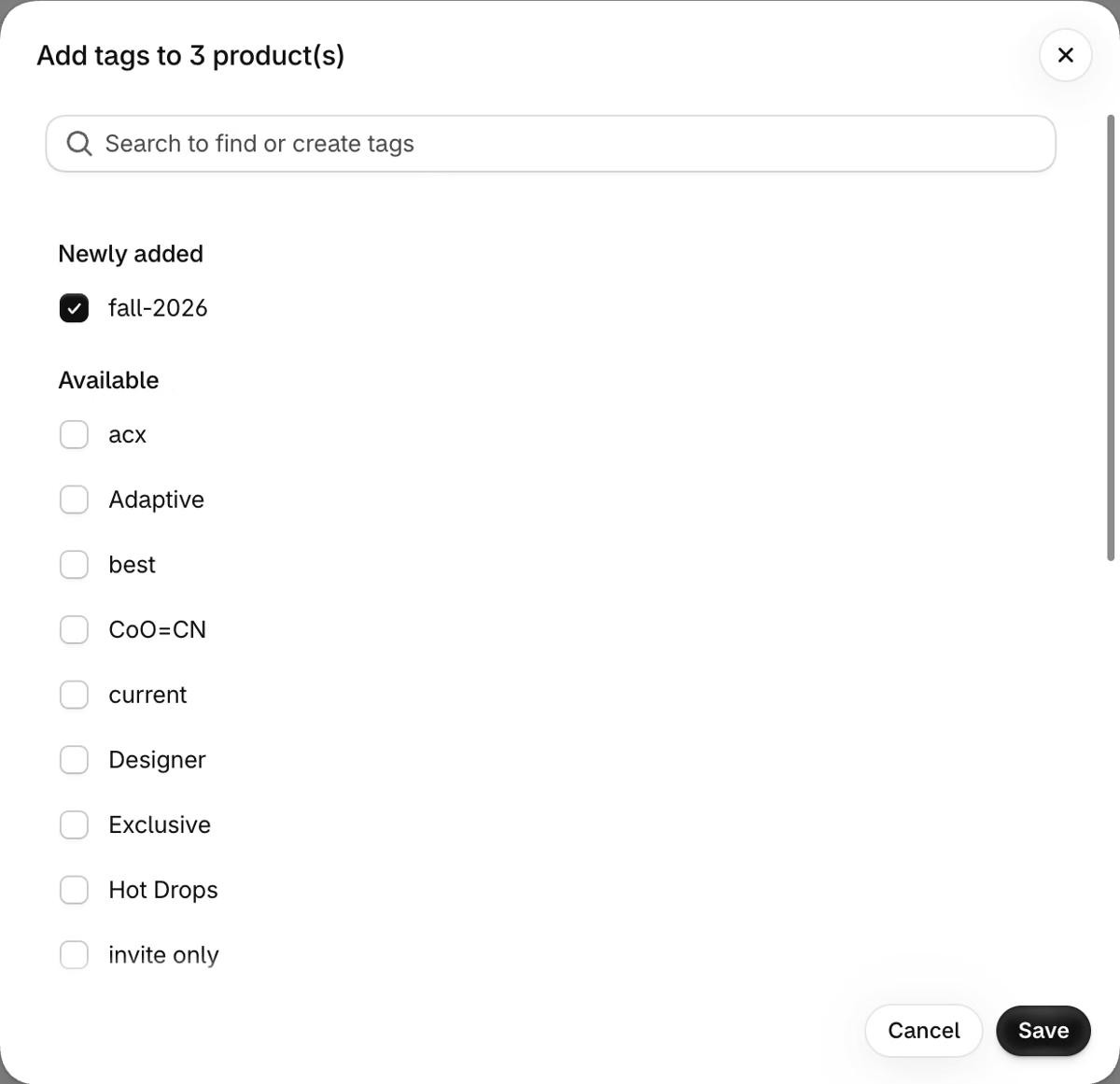
Remove tags works the same way. This is the right tool for a one-off tag on a list of products you can filter in the admin. It runs only on the products you select, so it doesn’t help with products you add later, and it can’t rename a tag. For large selections, Shopify’s own advice is to break bulk edits into smaller batches.
Why does the bulk editor replace all my tags?
In the bulk editor (Bulk edit with the Tags column), each product’s cell holds its complete tag list. When you type into the cell, paste into it, or drag one cell’s value down to the cells below, the new value replaces the old list. So if product A has new, sale and product B has summer, dragging A’s cell down to B gives B new, sale, and summer is gone.
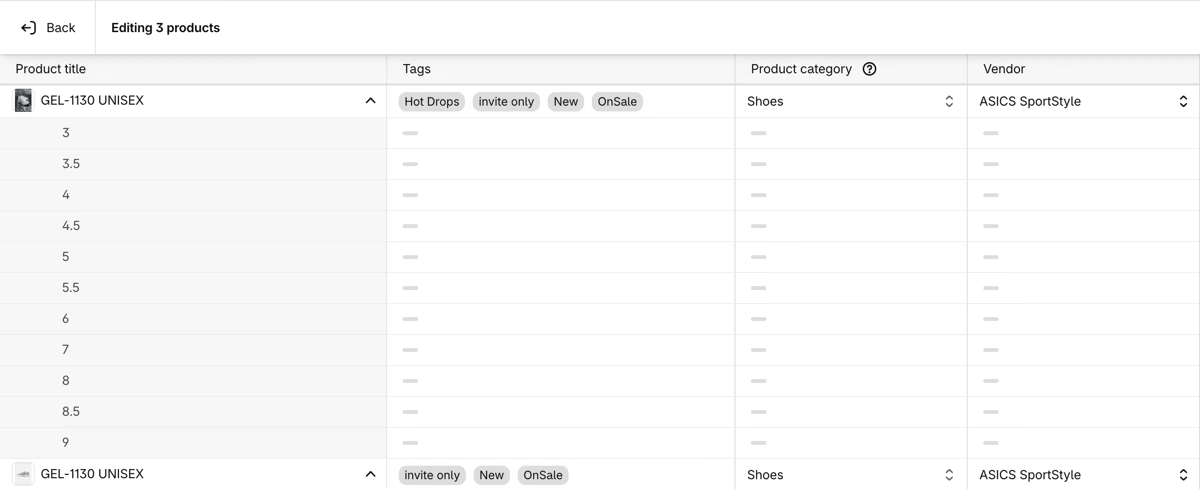
Use the bulk editor’s Tags column to fix the tags on a few products where you can see the full list. To add one tag to many products, use Add tags from the Products list instead.
Can you add tags with a CSV file?
Yes, but a CSV import sets the tag list, it doesn’t add to it. With Overwrite products with matching handles selected, the Tags cell in your file becomes the product’s full tag list, separated by commas. A blank Tags cell removes all tags from that product. To add a tag with a CSV, export the products first, add the new tag to the end of each Tags cell, and import the file again. If your file doesn’t need to touch tags, delete the Tags column before you import so the existing tags are left alone. We cover what else a CSV import overwrites in updating Shopify from a spreadsheet.
A product can have up to 250 tags, and each tag can be up to 255 characters long. Commas separate tags, so a tag can’t contain one.
How do you add a tag to all products from one vendor?
In the Products list, filter by Vendor, click Select all results, and use Add tags. That covers the products from that vendor today.
In Ablestar Bulk Product Editor you can do the same with more filters and a preview:
- In the app, open Products and add a filter, for example Vendor contains ASICS SportStyle. You can combine it with filters like product type, collection, price, inventory, tag, or a metafield value.
- Click Edit products.
- Under Field to edit, select Tags. Under How to edit, select Add tag(s) to product.
- Type the tag under Tags to add and press Enter. You can add more than one tag.
- Check the preview. The new tag is shown in green next to the tags each product already has.
- Click Run edit.
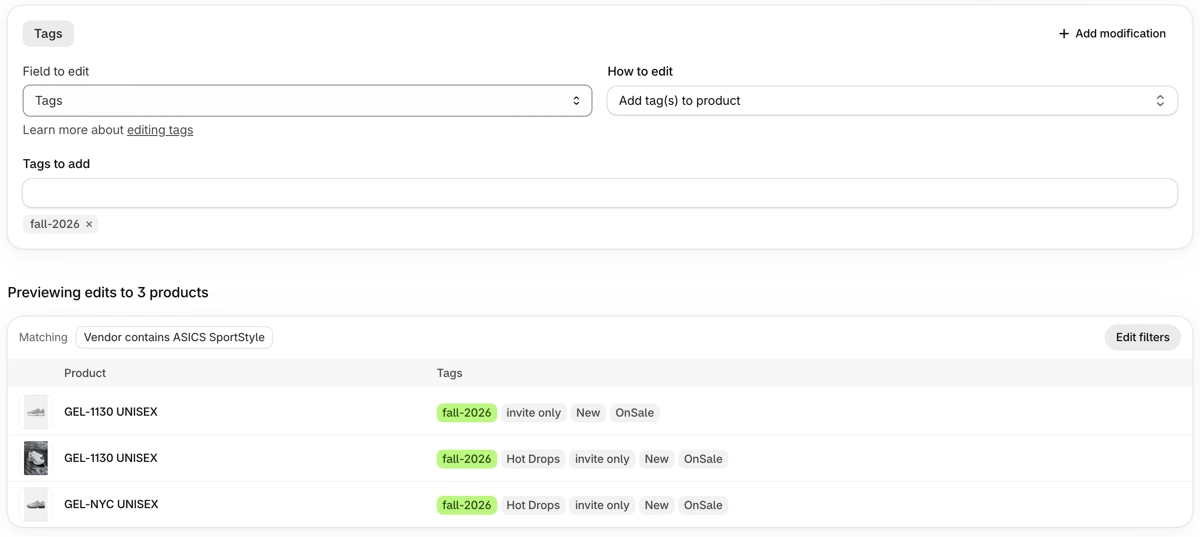
A product matches a filter when at least one of its variants matches. Tags belong to the product, so a filter on variant inventory tags the whole product as soon as one variant is out of stock. To tag only products where every variant is out of stock, use the Product is completely out of stock filter.
How do you find products that don’t have a tag?
In Bulk Product Editor, add the Tag filter with does not contain and the tag, for example every product without fall-2026. has no tags finds products without any tags, and has at least one tag finds the opposite. The Tag filter has a case-sensitive and a case-insensitive version of contains and does not contain, which helps when the same tag exists as Sale and sale. See searching for products with no tags.
How do you rename or remove a tag on every product?
Shopify has no screen to manage tags for the whole store. To rename a tag in the admin, you filter by the old tag, select all results, add the new tag, and then remove the old one.
In Bulk Product Editor, Rename tag does it in one edit:
- Filter with Tag contains (case-sensitive) and the old tag, for example
OnSale. - Click Edit products, select Tags, and under How to edit select Rename tag.
- Enter the old tag under Find tags that are named and the new one under Rename them to.
- Check the preview and click Run edit.
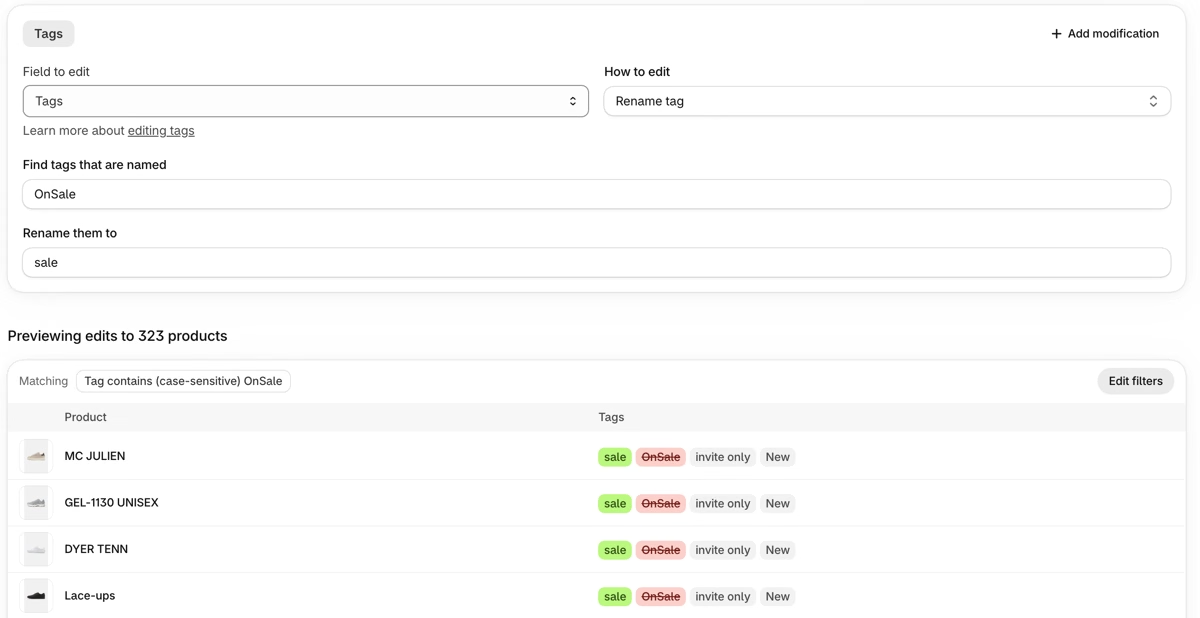
Rename tag ignores capitalization when it looks for the old tag, so it’s also how you turn Sale, SALE and sale into one tag. To remove a tag everywhere, filter by it and use Remove tag(s) from product. To change part of many tags at once, for example the prefix color_ to colour_, use Find and replace within tag name.
Every edit is in History, and Undo reverses it: it removes the tags the edit added and puts back the tags it removed. Tags you added to the same products later stay.
How do you keep tags clean?
Tags tend to grow without anyone deciding on them: one person writes Sale, another on-sale, an import adds OnSale. Shopify’s tag suggestions only show the first 5,000 unique product tags, and automated collections and storefront filters only use the tags you pick, so products tagged on-sale don’t show up in a collection built on Sale.
- Pick one style. For example all lowercase, with hyphens instead of spaces:
fall-2026,free-shipping. - Use prefixes for groups.
color-red,material-cottonandseason-fallare easy to filter and easy to find later. - Date your seasonal tags and remove them. A
sale-bfcm-2025tag that is still on 400 products a year later is noise. Remove old sale and season tags when the season ends. - Use metafields for structured data. Tags are fine for grouping and collections, but values like material or size belong in metafields, where they have a type and can be shown in the theme. See moving prefixed tags to metafields.
- See what you have. Our free Shopify product tag report lists every tag on your store with the number of products that use it.
How do you tag products automatically?
A bulk edit tags the products that exist today. For products you add later, or tags that depend on stock or price, you need an automation:
- Shopify Flow (free on Basic and up) has Add product tags and Remove product tags actions. A workflow with the Product created trigger can tag every new product, and a scheduled workflow can tag existing ones in batches. It takes some setup, and it runs at most every 10 minutes on a schedule.
- Product rules in Bulk Product Editor run an edit automatically when a product is created (Advanced plan) or updated (Professional plan), for example add
newto new products, or tag products that go on sale and remove the tag when the sale ends. See product rules. - Recurring edits run the same edit on a schedule, from hourly to monthly, for example to tag out-of-stock products every night. See recurring edits.
Which way should you use?
- One tag on products you can filter in the admin: use Add tags or Remove tags in the Products list.
- A few products where you want to see and fix the full list: use the bulk editor’s Tags column.
- Tags as part of a bigger import: use a CSV, and leave the Tags column out unless you mean to replace it.
- Rename, clean up, or tag by filters Shopify doesn’t have: use a bulk editor app with a preview and undo.
- Every new product, or tags that follow stock and price: use Flow or product rules.
Adding, removing and renaming tags, the preview and undo are on every plan of Bulk Product Editor. The free plan edits up to 10 products per edit, Basic ($30/month) removes the limit, and product rules and recurring edits start on Advanced ($60/month). See all plans.
Frequently asked questions
Does Shopify’s Add tags bulk action overwrite existing tags?
No. Add tags in the Products list adds the tag to the selected products and keeps their other tags. Tags are overwritten when you edit the Tags cell in the bulk editor or import a CSV with a Tags column.
How many tags can a Shopify product have?
Up to 250 tags per product, each up to 255 characters. On Shopify Plus there is no tag limit, but the bulk editor shows only 250 tags.
Can I undo a bulk tag change?
Shopify has no undo for bulk actions, the bulk editor, or CSV imports. You can run Remove tags for a tag you added by mistake, but tags you removed or replaced are gone unless you have an export. In Bulk Product Editor, open the edit under History and click Undo. See can you undo a bulk edit in Shopify.
Can Sidekick add tags to products?
If Bulk Product Editor is installed, you can ask Sidekick something like “add the tag sale to all Nike products”. Sidekick makes a Bulk Product Editor preview, and you open it and click Run edit yourself. See using Sidekick with Bulk Product Editor.

Related articles
How to bulk edit prices on Shopify in 2026: percentages, rounding, markets and sales
Written by Ablestar
Updating Shopify from a spreadsheet: what CSV import overwrites and how to update only what you need
Written by Ablestar

Can you undo a bulk edit in Shopify? How to recover and how to make bulk changes safely
Written by Ablestar