

Can you undo a bulk edit in Shopify? How to recover and how to make bulk changes safely
Shopify has no undo for the bulk editor or CSV imports. Here's how to find what changed, how to get your old product data back, and a safe process for the next bulk change.
No, Shopify doesn’t have an undo for bulk edits. Once you save a change in the bulk editor, run a bulk action on the product list, or import a CSV file, the change is final. Shopify can’t cancel a CSV import after it starts, it doesn’t keep a history of past imports, and deleted products can’t be restored. To get your old data back you need a copy of it from before the change: an export you took, a backup app, or the change log of the app you used for the edit.
This guide covers how to work out what changed, how to restore it, and how to set up your next bulk change so a mistake takes a click to fix instead of a weekend.
What Shopify keeps (and what it doesn’t)
It helps to know what’s there before you go looking.
- The bulk editor and bulk actions save straight to your products. There’s no undo or history after you click Save. Since December 2025 the bulk editor shows a confirmation with the old and new values before it saves inventory quantities, but that only covers inventory.
- CSV imports can’t be canceled once they begin, and you can’t view a history of past imports.
- Deleted products are permanently removed and can’t be restored. If you might need a product again, archive it instead.
- The activity log (Settings > General) shows that something was changed and by whom, but not the old or new values. It’s view-only and shows a maximum of 250 results.
- Inventory is the exception. Each variant has an inventory adjustment history (View adjustment history on the product page) that shows each change and the new total, so you can work out the old quantities one variant at a time.
So for prices, titles, descriptions, tags, metafields, and most other fields, Shopify itself has no record of the old values.
The most common cause: a CSV import that blanks out fields
A lot of “my data is gone” problems start with a CSV import, and usually with the Overwrite products with matching handles option. With it selected, Shopify says that “existing values will be replaced for all columns included in the CSV”.
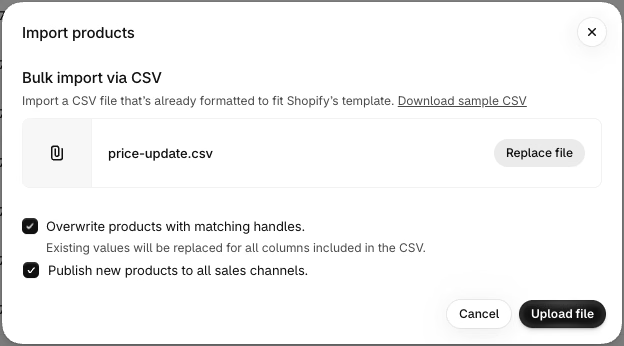
The details matter here, because Shopify’s CSV rules treat a missing column and an empty cell differently:
- A column that isn’t in the file is left alone. The value on the product stays the same.
- A column that’s in the file but empty overwrites the product’s value with a blank. This is how compare-at prices, descriptions, or SEO fields get wiped by a file that was only meant to change prices.
- Option and variant columns are fragile. A SKU row without its option columns can delete the variant option, and changing option values creates new variant IDs, which can break links from other apps.
- Sorting the file in Excel or Numbers can separate image rows from their product, and Shopify warns that the product’s images will be lost.
If you update products by CSV, start from a fresh export, delete every column you aren’t changing (Shopify needs the URL handle and Title columns), and check for empty cells before you import.
How to recover after a bad bulk edit
Work through these in order. The first two keep the damage from spreading, and the rest are ways to get the old values back.
1. Stop anything else that edits products
Pause other imports, automations, and scheduled edits that touch the same products. If a rule or a sync runs on top of the broken data, it’s harder to tell which values were correct.
2. Work out exactly what changed
Write down which products and which fields were affected. The activity log tells you when it happened and who did it, and a look at a few affected products tells you which fields are wrong. The smaller the list, the safer the restore.
3. Restore from an export you took before the change
If you exported your products before the edit, this is your backup. Take that file, keep the URL handle and Title columns plus only the columns that were damaged, delete the rows for products that weren’t affected, and import it with Overwrite products with matching handles selected. Don’t re-import the whole file, because it also overwrites any correct changes made since the export.
4. Restore from a backup app
Backup apps like Rewind Backups, BackupMaster, and Talon Backups copy your store data on a schedule and can restore it. They only help if they were installed before the mistake.
5. Undo the edit in the app you used
If the change was made with a bulk editing app that keeps a change log, undo it there. In Ablestar Bulk Product Editor, every edit is listed under History with the old and new value of each field on each product.
- In the app, click History and open the edit.
- Click Undo. The app sets every changed field back to the value it had before the edit.
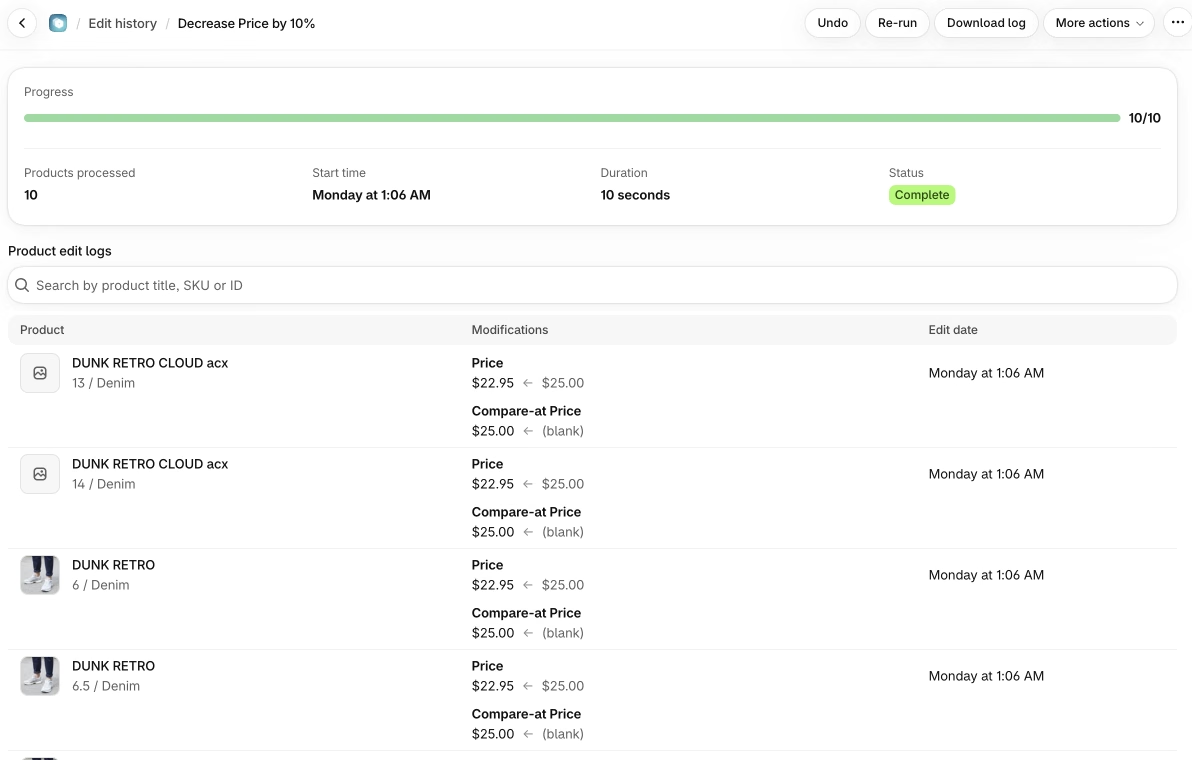
A few things to know about undo:
- If you need to undo several edits, undo them in reverse order, newest first, and let each one finish before you start the next.
- Undo sets the whole field back. If someone changed the same field after the edit, that later change is overwritten too.
- If you only want to restore some products, click Download log instead. The log has the old and new value for every change, so you can build a spreadsheet with just the rows you need.
6. Look up old prices in the price history
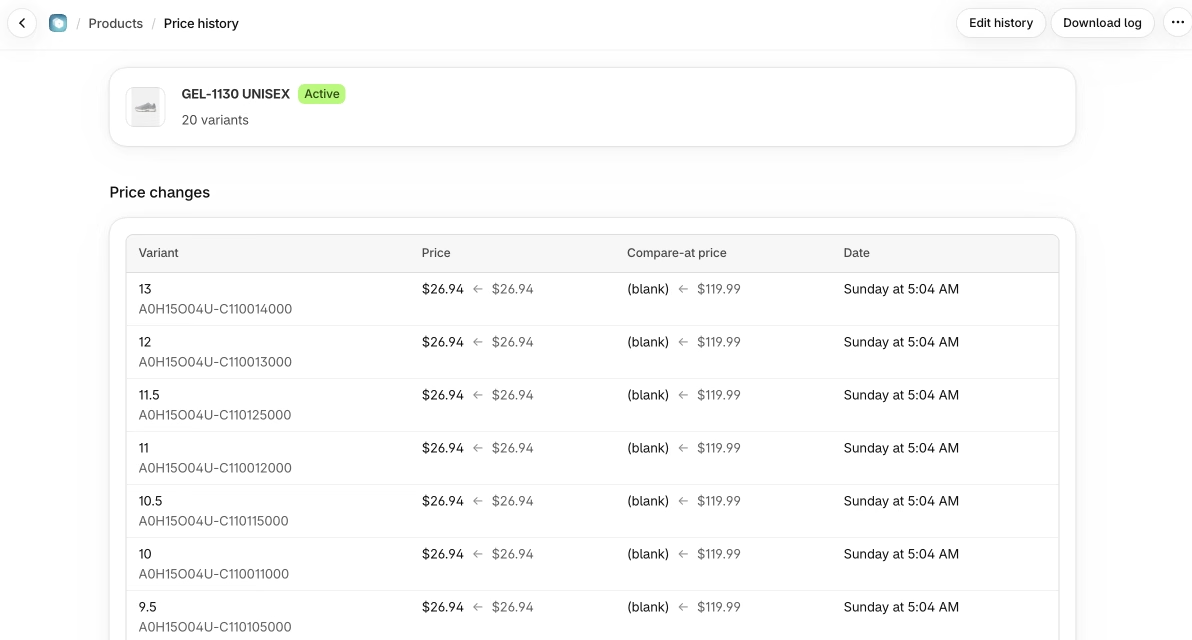
Prices are the field merchants most often need back, and they’re often changed outside any app (by hand, by a CSV import, or by another app). Bulk Product Editor records every price and compare-at price change on your products, no matter where the change came from, from the time the app is installed. (On the free plan, price tracking pauses if nobody opens the app for 14 days.) Open a product’s Price history to see each old and new value with the date.
7. Deleted products
Deleted products can’t be restored in Shopify. The only way back is to recreate them from an export or a backup app. Note that a recreated product gets a new product ID, so links from reviews, ads, or other apps may need to be set up again.
A safe process for your next bulk change
Most bulk edit mistakes come from one of three things: the wrong products were selected, the wrong field was changed, or there was no way back. This process covers all three.
- Export first. Export the products you’re about to change, with all columns. Name the file with the date so you can find it. If you change products often, schedule a recurring export so a recent copy always exists.
- Filter narrowly. Select products by the filters that describe the change (a collection, vendor, tag, or price range) instead of selecting all and hoping. Check the product count before you continue.
- Test on a few products. Run the change on two or three products, check them in the admin and on the storefront, and then undo or fix them.
- Preview the full change. Before the real run, look at the old and new values for a sample of products. A preview catches a wrong percentage or a wrong field before anything is saved.
- Change only what you mean to. One field per edit is easier to check and easier to undo. With CSV files, remove every column you aren’t changing.
- Know how you’ll undo it. Decide before you click save: an undo button, a backup restore, or a re-import of the export from step 1.
- Check afterwards. Look at a few products and one collection page. If the change is a sale, schedule the end at the same time as the start.
- Archive instead of delete. Archived products can be brought back, deleted ones can’t.

How Bulk Product Editor keeps bulk changes reversible
We built Ablestar Bulk Product Editor around this process, so the safe way is also the default way:
- Preview before every edit. The edit page shows the old and new value for every product that matches your filters before you run it.
- Undo for every edit, on every plan, including the free plan. Edits made in the app or with a spreadsheet stay in History for 60 to 180 days depending on your plan.
- Scheduled undo. When you schedule an edit, you can schedule its undo at the same time. This is the easiest way to run a sale that ends on its own.
- Download log for every edit, with the old and new values, so you can restore part of an edit or keep a record.
- Price history for every price and compare-at price change on your products, including changes made outside the app.
- Exports and recurring exports in CSV, Excel, and other formats, so a fresh backup is always there. Recurring exports are on the Advanced and Professional plans.
See all plans for what each plan includes.
Frequently asked questions
Can I undo a CSV import in Shopify?
No. Shopify can’t cancel a product CSV import after it starts and doesn’t keep a history of past imports. To reverse it, re-import the affected columns from an export you took before, restore from a backup app, or, for prices, look up the old values in a price history.
Can I restore products I deleted in Shopify?
No, deleted products are permanently removed. You can recreate them from an export or a backup app, but they get new product IDs. Archive products instead of deleting them if there’s any chance you’ll need them again.
Does Shopify keep a history of product changes?
Only partly. The activity log shows that a product was changed and by whom, without the old or new values, and inventory has an adjustment history per variant. There’s no history of old prices, titles, descriptions, tags, or metafields.
How long can I undo an edit in Bulk Product Editor?
Edits made in the app or with a spreadsheet can be undone for as long as they’re in your History, which is 60 to 180 days depending on your plan. Logs of automatic edits from product rules, recurring edits, and inventory sync are kept for 30 days.
Why did my bulk edit change products I didn’t select?
Usually because the filter or the CSV matched more products than expected, for example a tag that’s also on other products or a URL handle that matches a different product. Always check the product count and a preview before you run the change.
Related articles
Timed sales on Shopify: compare-at prices vs automatic discounts vs scheduled price changes
Written by Ablestar

Why Shopify shows the wrong images when a shopper picks a variant (and how to fix it)
Written by Ablestar
Shopify's 2048 Variant Limit: What Changes for Merchants and How to Bulk Edit at Scale
Written by Ablestar