

How to edit Shopify metafields in bulk: product, variant and list metafields (2026)
The native ways to change metafields on many Shopify products at once, where each one stops, and how to add to lists, copy values, delete metafields and handle rich text, reference and measurement types in bulk.
To edit metafields on many Shopify products at once, create a metafield definition first, then select the products in Products, click Edit products, open Columns and add the metafields under Metafields. You type a value per product and click Save. Product CSV import also supports product metafields, as columns like Material (product.metafields.custom.material). Both ways write exactly the value you give them. To add one value to a list without replacing it, copy a value from another field, edit only the products that match a filter, or undo a change, you need an app.
This guide covers what metafields and definitions are, the native ways to edit them in bulk and where each one stops, and how to do the common jobs: lists, copies, deletes and the harder types.
What are metafields and metafield definitions?
A metafield stores extra information on a product, variant, collection or customer: a material, care instructions, a size chart, a list of features. A metafield definition tells Shopify the name, the type (text, number, list of text, reference, rich text and so on) and the rules for the values. You create definitions under Settings > Metafields and metaobjects, or from the Metafields section of a product page with Add definition.
Most bulk tools need the definition. Shopify’s bulk editing support, added in 2022, is for “Product metafields with definitions”, and apps like Bulk Product Editor list only metafields that have one. Metafields without a definition can’t be edited in the Shopify admin, so if your store has some, create a definition for them first.
Product metafields have one value per product. Variant metafields have one value per variant and live in a different place in the admin; see variant metafields in bulk for the details.
A few Shopify limits apply to every store: 256 definitions per resource type, 50 pinned definitions that show on the admin pages, and 128 values in a list metafield (1,024 for lists of metaobject references).
How do you edit metafields in Shopify’s bulk editor?
- In Products, select the products. Use the filters and search on the product list to narrow them down first.
- Click Edit products, then Columns.
- In the Metafields section, pick the metafields to edit.
- Type or paste a value in each cell and click Save.
Shopify’s help says bulk editing works for product, variant, collection and customer metafields. Variant metafields need the variant bulk editor, which you open with a link; the variant metafields guide shows how.
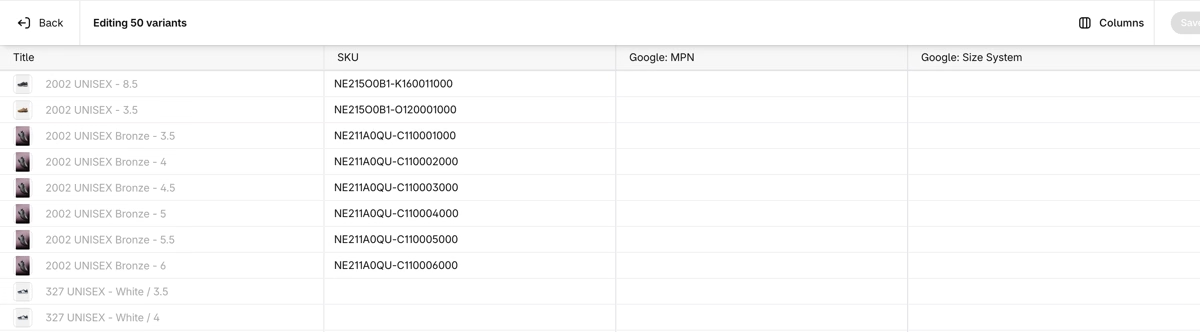
The bulk editor is good for a few hundred products when you know each value. It stops here:
- No rules. You can’t say “add this to the end”, “copy the value from another field” or “replace this word”. Each cell gets what you type.
- Lists are one value per product. There’s no way to add one item to the lists of many products; each product’s list is edited on its own.
- No undo after you click Save.
Can you update metafields with a CSV file?
Yes for product metafields, no for variant metafields. Shopify’s product CSV accepts columns named <name> (product.metafields.<namespace>.<key>) or just product.metafields.<namespace>.<key>. The easiest way to get the right headers is to export a few products with those metafields and edit that file.
Some limits to know before you start:
- Not every type is supported. Shopify’s list of CSV types includes text, numbers, dates, colors, measurements, money, URLs, product references and lists of metaobject references. Lists of text, rich text, JSON and file references are not on it.
- List values in Shopify’s examples are separated with semicolons, like
#ff00cc; #cc0000. - References take a handle or an ID, for example a product handle or
gid://shopify/Product/123. - Rows match by URL handle, and a blank cell in a column you include overwrites the value with a blank. Keep only the handle and the metafield columns you want to change. The spreadsheet guide explains how the import decides what to overwrite.
- Variant metafields aren’t supported in the product CSV at all.
Can Shopify Flow update metafields?
Flow has an Update product metafield action and a Remove product metafield action. Both work on the product that triggered the workflow, with triggers like Product added to store or Product status updated. That’s good for keeping a value up to date as products change. For a one-time change to products you already have, you need a workflow that runs on a schedule and loops over the products, which takes some setup.
How do you set or copy a value on many products?
For one value on every product, the bulk editor works if you paste it into each cell. It gets harder when each product needs its own value built from its other fields, like a metafield that repeats the vendor, or a search keyword made from the title and the product type.
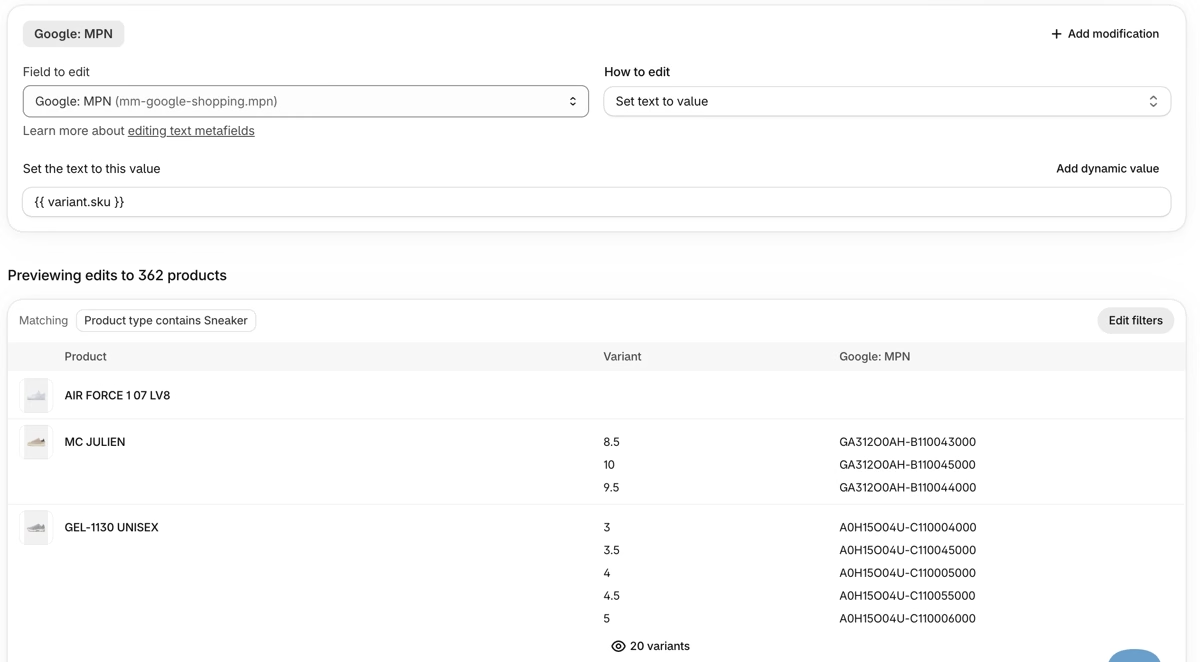
In Ablestar Bulk Product Editor, you filter the products, pick the metafield under Field to edit (in the Product metafields, Variant metafields or Category metafields group), and choose How to edit. Text metafields have Set text to value, Add text to end, Find and replace, Change capitalization and more. Add dynamic value inserts another field, so {{ product.vendor }} or {{ product.metafields.custom.material }} gives each product its own value. See dynamic values.
How do you add a value to a list metafield without replacing it?
A list metafield, like a list of features or compatible models, is saved as one value in Shopify. The bulk editor and the CSV both replace the whole list, so adding one item means rewriting every list by hand.
In Bulk Product Editor, list metafields have their own options:
- Add item to the end of the list (or the start) adds one value and keeps the others. If a product already has that value in its list, Shopify rejects the duplicate for that product, and the edit log shows it.
- Remove item(s) from the end of the list (or the start) removes a number of items from that end.
- Find and replace changes text inside the items. With an empty replacement it removes an item, but it matches text inside each item, so removing
Cottonalso changesOrganic Cotton. Check the preview. - Set from prefixed tags fills a list from tags like
Feature=Waterproof; see converting prefixed tags to list metafields and the tags guide.
The options are in editing list of text metafields. A few list types, such as lists of numbers, can’t be edited in the app yet; the app shows a notice when you pick one.
How do you remove a metafield from many products?
Shopify’s bulk editor has no “remove from all” action, and Flow’s Remove product metafield works one triggering product at a time.
In Bulk Product Editor, pick the metafield and choose Delete metafield (for metaobject references it’s Delete reference). It removes the metafield from every product in the filter, so the field shows as empty again. An edit that would leave the value empty also deletes the metafield instead of saving a blank. In a spreadsheet edit, an empty cell is skipped and a cell with delete deletes the metafield, so you can’t clear values by accident. See bulk deleting metafields.
How do you edit rich text, reference, JSON and measurement metafields?
These types need a specific format, which is where bulk edits fail most often.
- Rich text is saved as JSON, not HTML, and it isn’t on Shopify’s list of CSV types. In Bulk Product Editor you write it in a text editor that allows a limited set of HTML tags, and the app converts it. Find and replace works on the text inside, with a Case-insensitive search option. See rich text metafields.
- Product, variant, collection and page references take a handle or an ID in the app and in its spreadsheets, and the app looks up the ID. See product reference metafields.
- Metaobject references, like a size chart or a care guide entry, take the entry’s handle or its display name. See metaobject references and metaobject lists.
- File references take a file name from Content > Files or a URL. A URL from outside Shopify is uploaded to your files first. See file reference metafields.
- JSON must be valid JSON. The app checks it before the edit runs (“Valid JSON required”).
- Weight, dimension and volume need a number and a unit. In the app you type the number and pick the unit. In a spreadsheet you write
12 cmor1.5 kg, which is also how the app exports them, so an export can be edited and imported again. See dimension metafields. - Multi-line text has the same options as single-line text.
- Category metafields (like color or fabric from Shopify’s product taxonomy) are in their own group; see category metafields and the product categories guide.
When Shopify rejects a value, for example a value that isn’t in the definition’s list of choices, the edit log shows an error code with the reason. See error codes.
How do you find products with a missing or specific metafield value?
In Shopify, turn on Use as filter in admin in the metafield definition. Then you can filter the product list by that metafield’s value, or search with a query like metafields.custom.material:cotton. A store can turn this on for up to 50 product definitions. Product and variant metafields can also be smart collection conditions when the definition allows it.
In Bulk Product Editor, Add filter has Product Metafields, Variant Metafields and Category Metafields groups for every definition. Text metafields can be filtered with contains, equals and is not set, numbers with is greater than and is less than, and every type with is set and is not set. “Show me products with no care instructions” is the is not set filter, and the edit then changes only those products. A filter on a variant metafield returns only the matching variants. See search and filters.
How do you update metafields from your own spreadsheet?
With Spreadsheet edit in Bulk Product Editor, you upload your own CSV or Excel file and pick the column that identifies each row: SKU, barcode, variant ID, product ID or handle. So a supplier file with only SKUs works. Map each column to a metafield in the Product Metafields or Variant Metafields group. List cells can be a JSON array, one value per line, or values separated with | or commas. Exports from the app use the definition name as the column header. See bulk editing metafields and editing products by spreadsheet.
How do you make metafield changes safely?
Metafields often feed the product page, filters on the storefront and feeds to other channels, so a bad bulk change shows up in many places. Work in this order:
- Filter down to the products you mean to change, and check the count.
- Check the new values before you save. In Bulk Product Editor the preview shows the old and new value for every product before you click Run edit.
- Run it on a few products first, then on the rest.
- Keep a way back. In Bulk Product Editor, Undo on the edit’s page puts back the values from before the edit. See undoing an edit and how to undo a bulk edit in Shopify.
Which way should you use?
| Shopify bulk editor | Product CSV | Flow | Bulk Product Editor | |
|---|---|---|---|---|
| Product metafields |  | | One product per run | |
| Variant metafields | With a link |  | One variant per run | |
| Add to a list without replacing it | | | Build it yourself | |
| Value from another field | | | | |
| Delete a metafield on many products | | | One product per run | |
| Rich text, JSON, file references | Not documented | | | |
| Filter by metafield value | With admin filter on | | Conditions | |
| See changes before saving, undo after | | | | |
- A few products: edit the metafields on each product page.
- A few hundred products with values you know: use Shopify’s bulk editor.
- A file you already have, with supported types: the product CSV works for product metafields.
- Lists, copies between fields, deletes, many variants, or a change you may want to take back: use an app.
Metafield edits, filters, previews and undo are on every plan of Bulk Product Editor. The free plan edits up to 10 products per edit, and Basic ($30/month) removes the limit. See all plans.
Frequently asked questions
Why doesn’t my metafield show up in the bulk editor or in an app?
It probably has no definition, or the definition is for a different resource (variant instead of product). Add or check the definition under Settings > Metafields and metaobjects. In Bulk Product Editor, new definitions arrive on their own; if one is missing, use Refresh under Settings > Metafields.
Does a blank cell delete a metafield?
In Shopify’s product CSV, a blank cell in a column you include overwrites the value with a blank, so leave out columns you don’t want to change. In a Bulk Product Editor spreadsheet edit, blank cells are skipped, and you write delete in a cell to delete that metafield.
How many values can a list metafield hold?
Up to 128 values, or 1,024 for a list of metaobject references. A definition can set a lower limit.
Can I edit metafields with Sidekick?
If Bulk Product Editor is installed, Sidekick can prepare a Bulk Product Editor edit for text, number, date, true/false and text list metafields, and you open the preview and click Run edit yourself. See using Sidekick with Bulk Product Editor.

Related articles

Shopify product tags in bulk: add, remove, and clean up tags without overwriting (2026)
Written by Ablestar

How to bulk edit prices on Shopify in 2026: percentages, rounding, markets and sales
Written by Ablestar
Updating Shopify from a spreadsheet: what CSV import overwrites and how to update only what you need
Written by Ablestar