

How to set Shopify product categories in bulk (2026), with a bulk editor or Sidekick
Why the Shopify product category matters for taxes, collections and Shopify Catalog, how to set it on hundreds of products at once, how to ask Sidekick to do it, and how it differs from the Google product category.
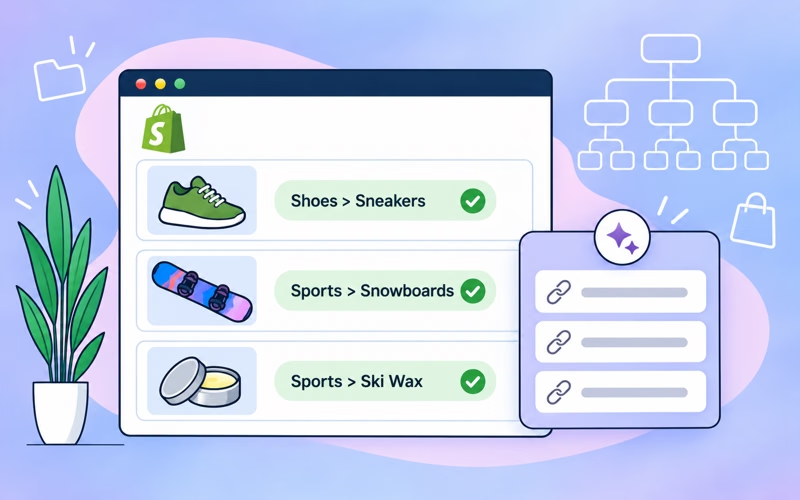
To set the product category on many Shopify products at once, select them in Products, click Bulk edit, add the Product category column, and pick the category for each product (you can drag one value down to the rows below). Shopify suggests a category for each product, but there’s no bulk action to accept the suggestions. For hundreds of products, filter them by product type, vendor or title in a bulk editor app and set the category for the whole group in one edit, or ask Sidekick to group your products and prepare one edit per category for you to review.
This guide explains why the category matters in 2026, the native ways to set it, how to do it in bulk with Bulk Product Editor and with Sidekick, and how the Shopify category differs from the Google product category.
Why does the Shopify product category matter?
Every product can have one category from Shopify’s Standard Product Taxonomy, a list of more than 10,000 categories like Apparel & Accessories > Shoes > Sneakers. The category is used in more places every year:
- Taxes. With Shopify Tax, the category decides which tax rate applies in places where some products are taxed differently. Products without a category get the general rate, and tax overrides still win over the category.
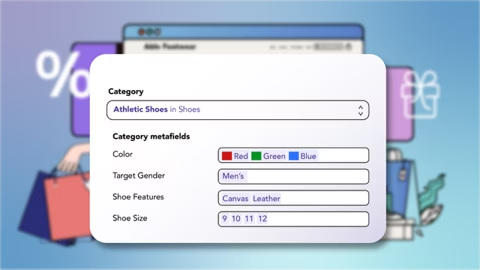
- Category metafields. The category unlocks standard attributes like color, size, material or shoe fit, which themes and filters can use.
- Collections and filters. Automated collections and storefront filters can use the category.
- Shopify Catalog and AI shopping. Products that Shopify classifies as uncategorized are left out of Shopify Catalog, which Shopify uses to make products available to AI shopping assistants. Shopify’s own classification can differ from the category you set, so setting it yourself helps.
We cover the taxonomy itself in more detail in Shopify’s product taxonomy.
How do you set the category in Shopify?
On a single product, the Category field in the product page suggests a category. Shopify shows it as a suggestion until you accept it or save the product. Products created by a CSV import or an app often stay uncategorized, because nobody opened them to accept the suggestion.
For many products:
- Bulk editor. Select the products, click Bulk edit, and add the Product category column under Columns. Pick a category in one cell and drag it down to the products that need the same one.
- CSV import. The product CSV has a Product category column. It takes the full path, like
Apparel & Accessories > Shoes > Sneakers, or the category ID. The path has to match Shopify’s taxonomy exactly.
There’s no bulk action that sets one category on all selected products, and no way to accept Shopify’s suggestions in bulk. So for a large catalog the bulk editor means picking or dragging the category product by product, page by page.
How do you set the category on hundreds of products at once?
In Ablestar Bulk Product Editor you set one category on every product that matches a filter:
- In the app, open Products and filter the products, for example Product type contains Sneaker, a vendor, a collection, or words in the title.
- Click Edit products.
- Under Field to edit, select Category.
- Under Set the category, start typing the category name and pick it from the list. Each option shows the parent category next to it, so you can tell Sneakers under Shoes from Dance Sneakers. You can also search by the taxonomy ID.
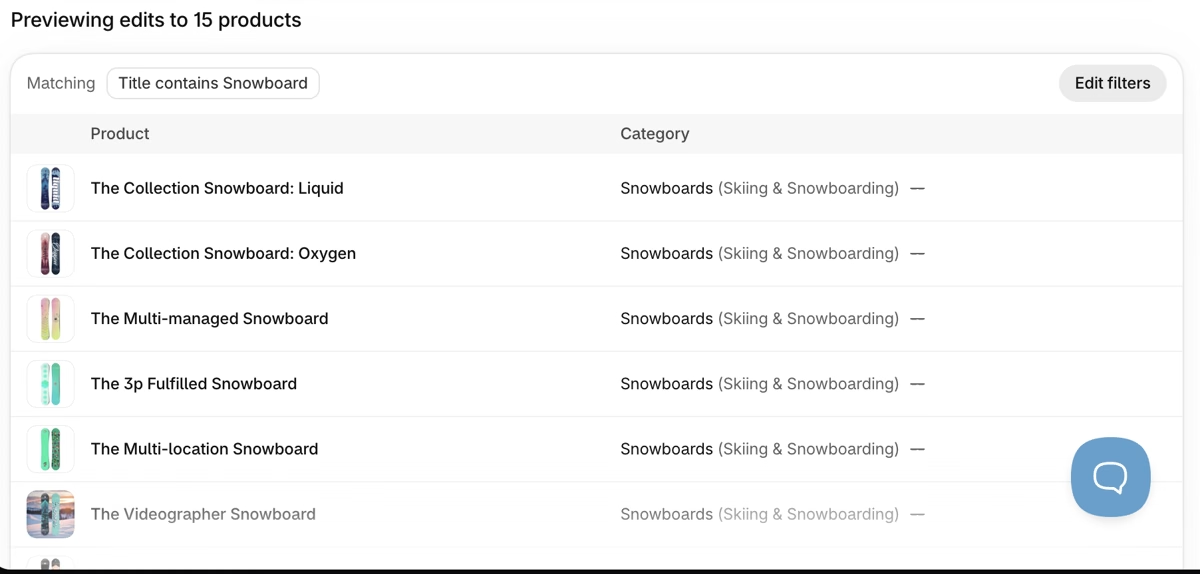
- Check the preview. It shows the new category and crosses out the old one.
- Click Run edit.
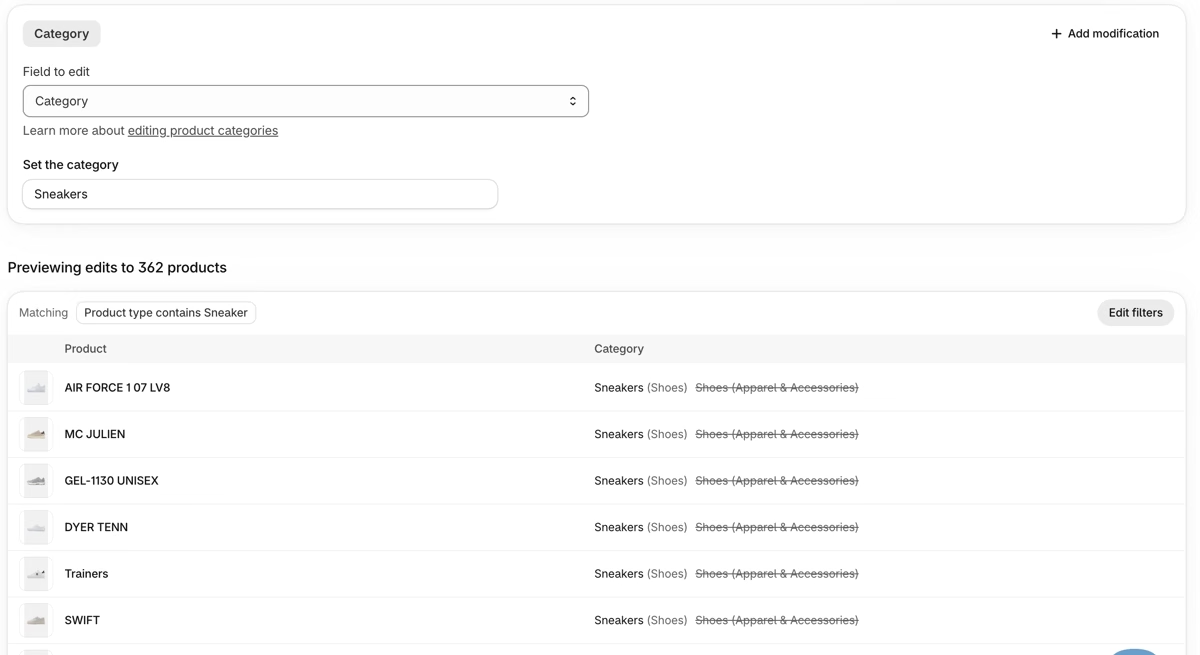
Repeat it for each group: one edit per product type, vendor or collection usually covers a catalog quickly. To find what’s left, filter by Category is blank. The Category filter also has is, is not and is not blank. Note that is matches that exact category, not its subcategories.
From a spreadsheet, map a column to Category. It accepts the category ID, the category name, or the full path with > between the levels, and the preview shows what each row will get.
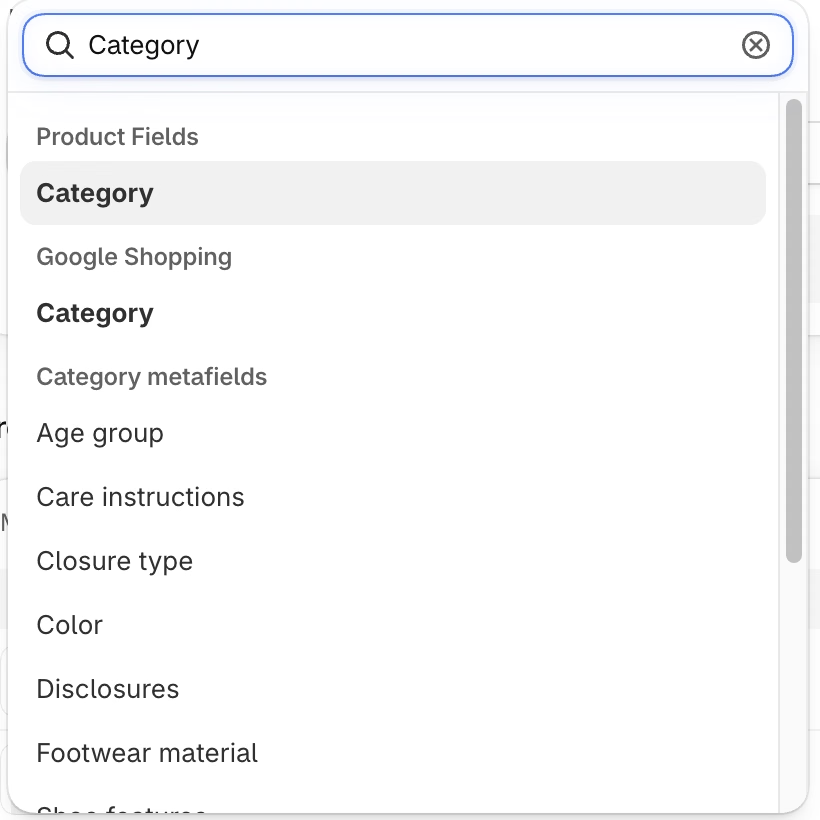
After the category is set, the Category metafields group has the attributes for that category, like Color or Closure type. Set the category first: Shopify rejects a category metafield on a product that isn’t in a matching category. The values have to exist in your store already. See editing category metafields.
Can Sidekick set product categories in bulk?
Yes, with Bulk Product Editor installed. Sidekick reads your products, picks the categories, and prepares one Bulk Product Editor edit per category. It never changes products on its own. You open each edit, check it, and click Run edit.
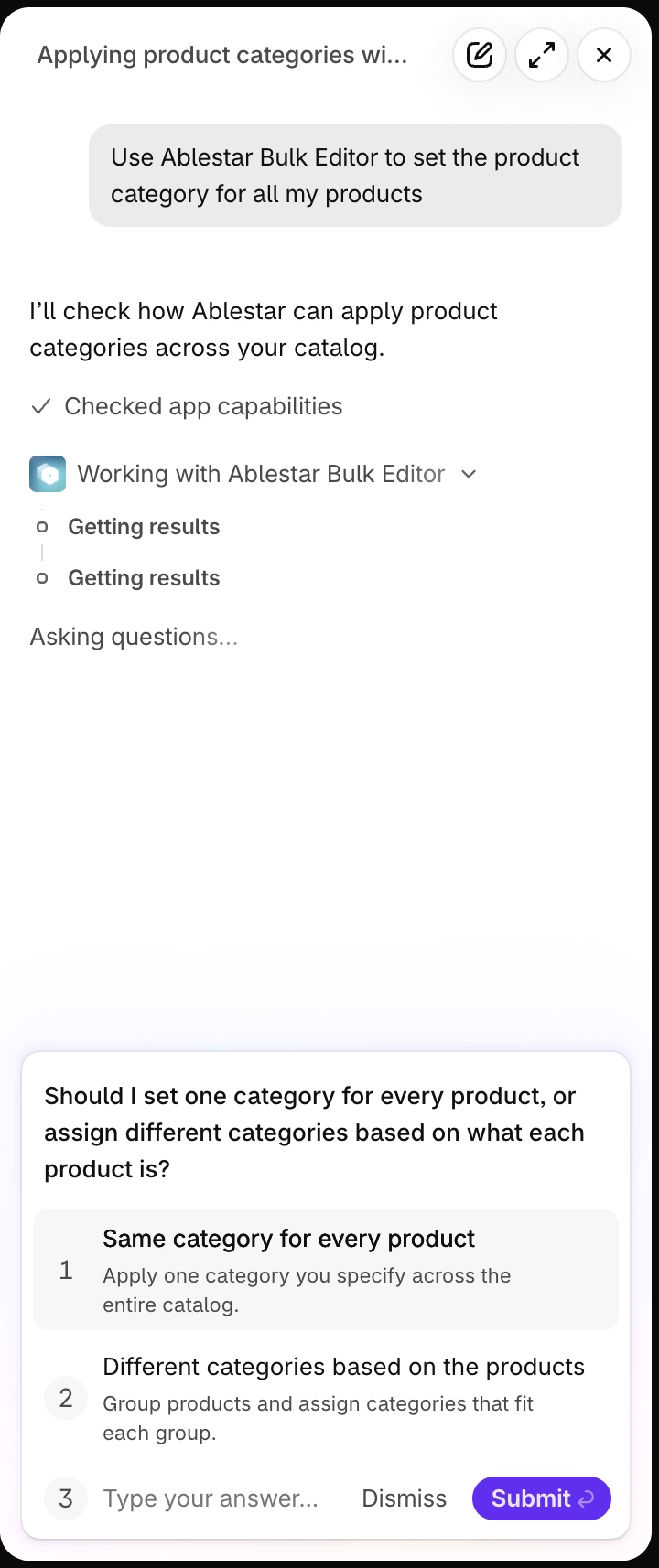
- Open Sidekick and ask it to set the categories, for example “Use Ablestar Bulk Editor to set the product category for all my products”.
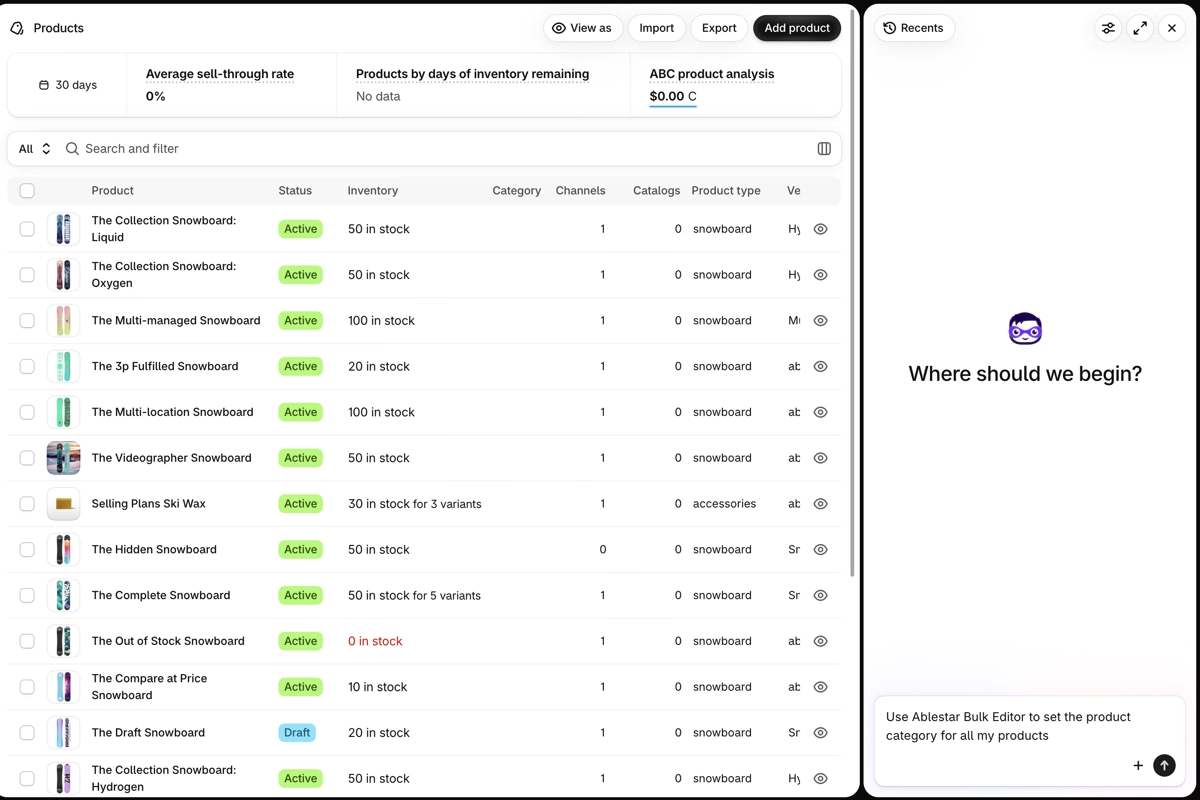
- Sidekick asks whether every product gets the same category or each group gets its own. Pick the one you want.
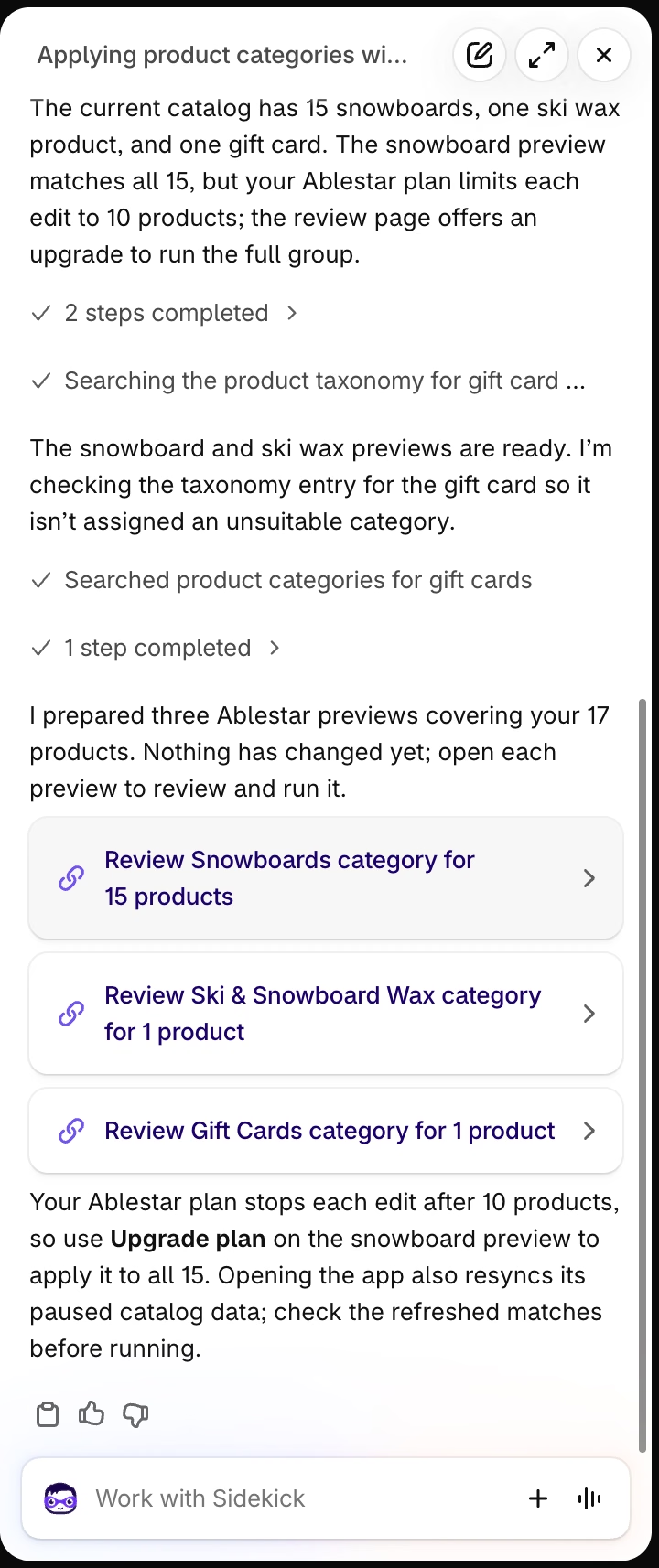
- Sidekick groups the products, finds a category for each group, and answers with one review link per group. In our test store it made three: 15 snowboards to Snowboards, a ski wax to Ski & Snowboard Wax, and a gift card to Gift Cards.
- Open each link. It opens the edit in Bulk Product Editor with the preview, where you can change the filter or the category before you click Run edit.
A few things to know:
- Each edit sets one category. Sidekick makes one edit per group, so a varied catalog means several edits to review.
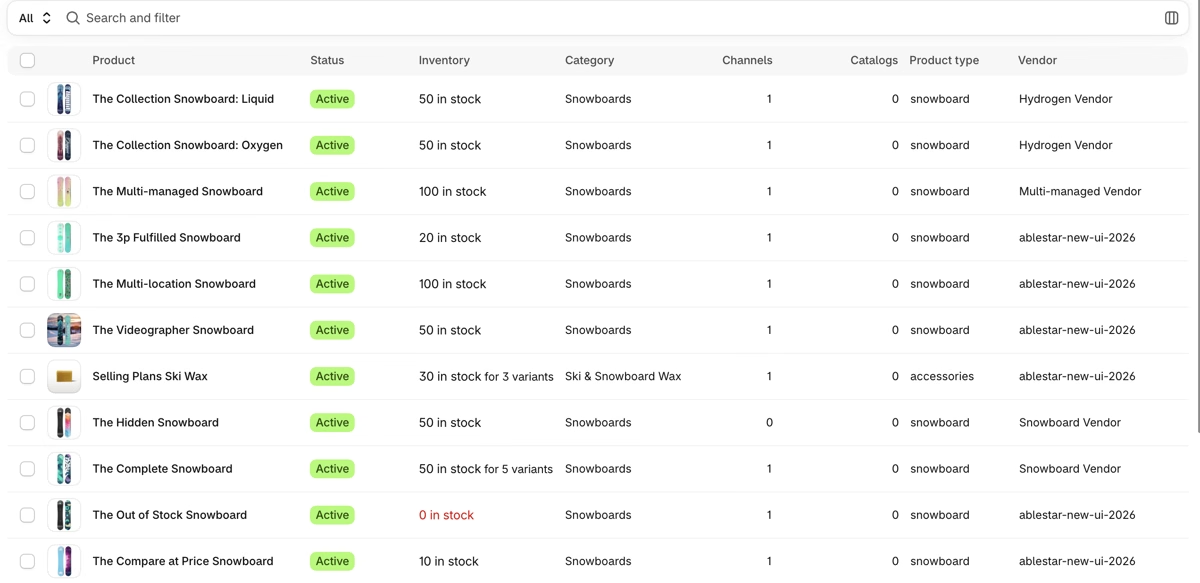
- Check the groups. Sidekick decides from the title, product type and other data. Products with unclear data can end up in the wrong group, so look at the preview before you run it.
- Plan limits apply. On the free plan each edit stops after 10 products, and Sidekick tells you when a group is bigger.
- For thousands of products, a spreadsheet or filtered edits like the ones above are faster to check than many Sidekick groups.
See using Sidekick with Bulk Product Editor.
What about the Google product category and custom labels?
The Shopify category and the Google product category are different fields. The Shopify category uses Shopify’s taxonomy. The Google product category uses Google’s own list and is stored separately, in the Google Shopping metafields. Shopify’s categories don’t sync to Google by themselves.
For most products you don’t have to set the Google category anymore: Google assigns a category to every product automatically, and setting it yourself is optional. It still helps when a product type needs category-specific attributes, or when your Google Ads campaigns are built on Google categories.
Custom labels 0 to 4 are free-text fields that you use to group products in Google Ads campaigns, for example by season, margin or best sellers. Each label can have up to 1,000 different values. In Bulk Product Editor, the Google category is the Category field in the Google Shopping group, and the custom labels are Google: Custom Label 0 to 4. You can set them with the same filters, for example a seasonal label on every product in a collection. See Google Shopping custom labels.
Which way should you use?
| Product page | Shopify bulk editor | Product CSV | Sidekick + Bulk Product Editor | Bulk Product Editor | |
|---|---|---|---|---|---|
| Suggests a category |  |  | | | |
| One category on many products at once | | Drag per page | | | |
| Pick products by type, vendor or title | | | In the file | Sidekick groups them | |
| Preview before it changes | | | | | |
| Undo | | | | | |
- A few new products: accept Shopify’s suggestion on the product page.
- A catalog where nobody has set categories yet: ask Sidekick to group the products and review its edits, or filter by product type in Bulk Product Editor and set one category per group.
- A supplier file or an export with categories: use a spreadsheet edit.
Setting categories, the preview and undo are on every plan of Bulk Product Editor. The free plan edits up to 10 products per edit, and Basic ($30/month) removes the limit. See editing product categories and all plans.
Frequently asked questions
Does Shopify set product categories automatically?
Shopify suggests a category on the product page, but it doesn’t apply it until you accept it or save the product. Products created by CSV import or apps can stay uncategorized.
Can I remove a category from many products?
Bulk Product Editor sets categories but doesn’t clear them. To go back after a mistake, use Undo on the edit in History, which puts back the category each product had before the edit.
What happens to category metafields when I change the category?
Shopify moves attributes that have values, or that are linked to product options, to the new category. Empty attributes from the old category aren’t carried over.
Is the Shopify category the same as the Google product category?
No. They use different lists and are stored in different fields. Google assigns its own category automatically, and you can set the Google category yourself where you need to.
Related articles
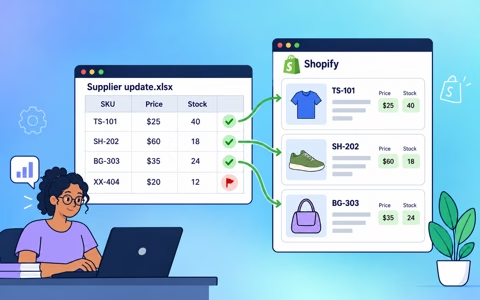
Updating Shopify from a spreadsheet: what CSV import overwrites and how to update only what you need
Written by Ablestar
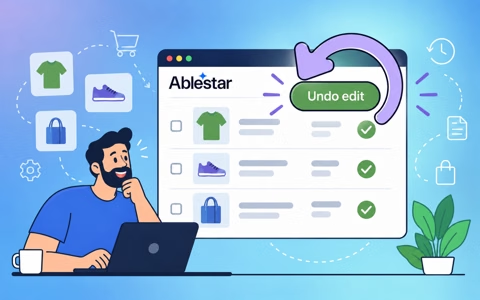
Can you undo a bulk edit in Shopify? How to recover and how to make bulk changes safely
Written by Ablestar
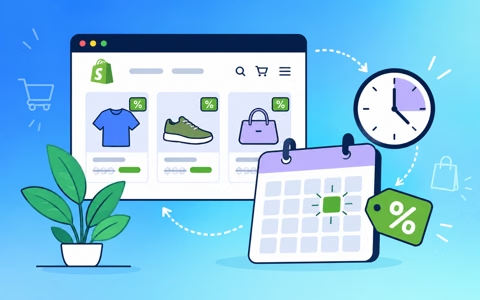
Timed sales on Shopify: compare-at prices vs automatic discounts vs scheduled price changes
Written by Ablestar