

Variant metafields in Shopify: how to see and edit them in bulk (2026)
Why Shopify's bulk editor doesn't show variant metafields, the variant bulk editor link that does, why CSV import can't help, and how to set, copy and add to variant metafields across thousands of variants.
Shopify’s bulk editor doesn’t show variant metafields when you start it from the Products list, because that editor only offers product metafields. To edit variant metafields natively, open the variant bulk editor with a link like /admin/bulk?resource_name=ProductVariant&edit=metafields.custom.your_key and type the values per variant. Product CSV import doesn’t help, because Shopify doesn’t support variant metafields in the product CSV. For changes across many variants, like copying each SKU into a metafield, adding a value to a list without replacing it, or editing only the variants that match a filter, you need an app.
This guide explains where variant metafields live in 2026, the native ways to edit them, where those stop, and how to do the common bulk jobs.
What’s the difference between product and variant metafields?
A product metafield has one value for the whole product, like a care guide or a material. A variant metafield has its own value for each variant, like a manufacturer part number, a size system, or the weight of one size. You create the definition under Settings > Metafields and metaobjects, under Products or Variants. The values then show on the product page or on each variant’s page.
Category metafields add to the confusion. Attributes like Color and Size from Shopify’s product taxonomy are product metafields. When you link a product option to one of them, each variant gets its value through its option value, not through a variant metafield. So if you’re looking for a variant’s color, check the product’s options first.
A few limits apply to every metafield: a store can have up to 256 definitions per resource type, only 50 can be pinned to show on the admin pages, and a list metafield can hold up to 128 values (1,024 for metaobject references).
Why doesn’t Shopify’s bulk editor show variant metafields?
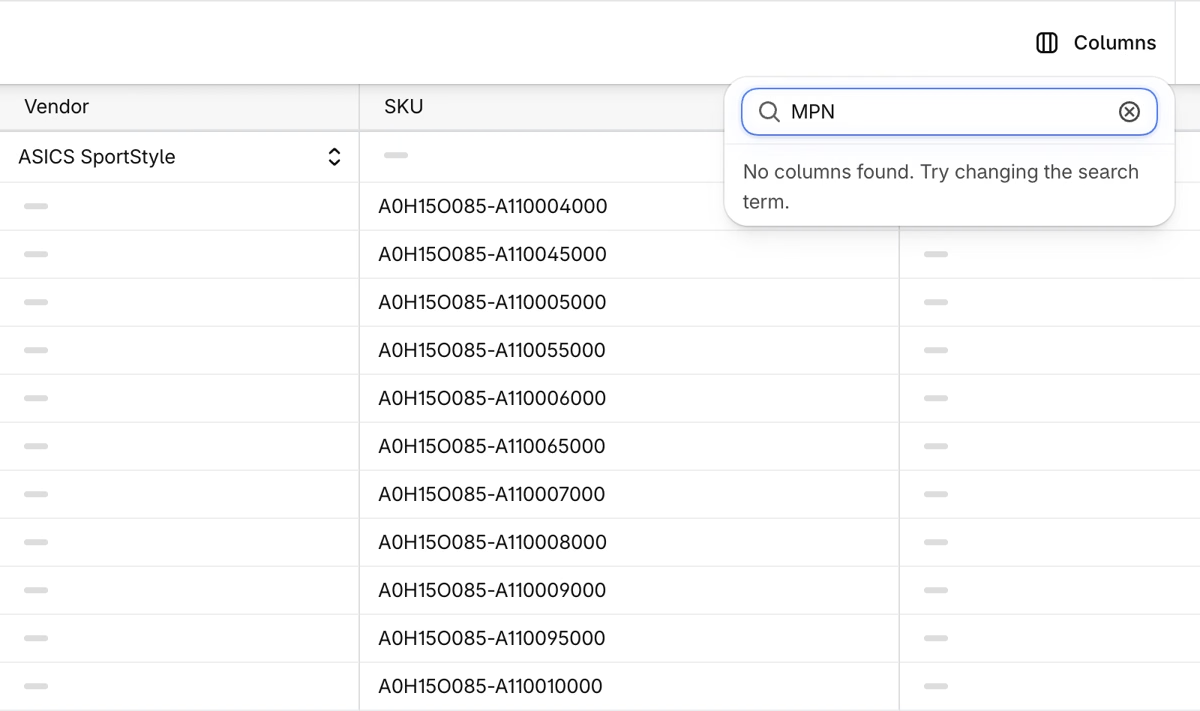
When you select products and click Bulk edit, Shopify opens the product bulk editor. Its Columns menu offers product fields, variant fields like SKU and Base price, and product metafields, but not variant metafields. Search for a variant metafield there and you get “No columns found”.
How do you edit variant metafields in Shopify’s bulk editor?
Shopify has a separate bulk editor for variants, but there’s no button for it. Shopify’s own help says to “use the variant bulk editor, and then add metafield columns”. The way to open it is a link:
- Find the namespace and key of your variant metafield under Settings > Metafields and metaobjects > Variants, for example
custom.part_number. - Go to
https://admin.shopify.com/store/YOUR-STORE/bulk?resource_name=ProductVariant&edit=sku,metafields.custom.part_number. ReplaceYOUR-STOREand the metafield, and add moremetafields.namespace.keyentries separated by commas. - Type or paste the values per variant and click Save.
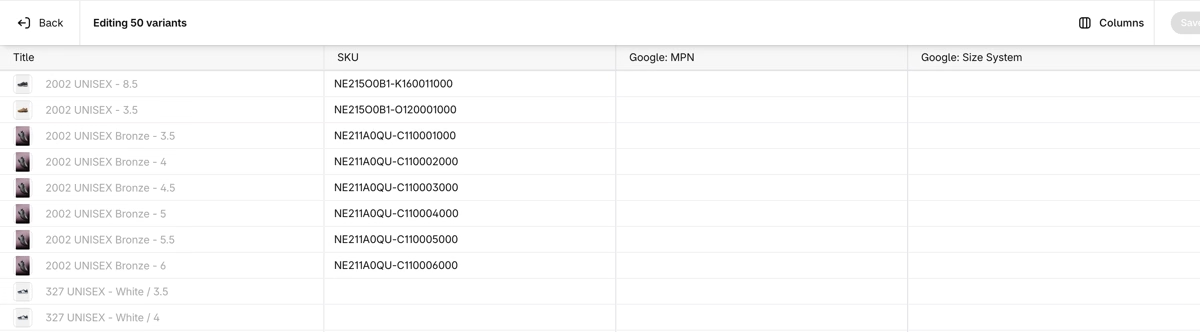
This works, but it’s slow for large catalogs:
- It shows a page of variants at a time, 50 in our test, and you can’t filter the list inside the editor.
- There’s no formula. You can’t say “set the part number to the SKU” or “add ‘Final sale’ to the end”.
- A list metafield is one cell. Whatever you type replaces the whole list, so adding one value to many lists means retyping each one.
- There’s no undo after you click Save.
Can you import variant metafields with a CSV file?
Not with Shopify’s product CSV. Shopify’s help says it directly: “Variant metafields aren’t supported for product CSV import/export.” Product metafields are supported, as columns like Fabric (product.metafields.custom.fabric), but variant metafields have no column. To update variant metafields from a spreadsheet, you need an app that reads the file and matches rows by SKU, barcode or variant ID.
Can Shopify Flow update variant metafields?
Flow has an Update product variant metafield action, but it only updates the variant that triggered the workflow, and its triggers are events like a variant being added or going out of stock. That’s useful for keeping one value up to date, for example setting a metafield when a variant sells out. For a one-time change to existing variants, you’d need a scheduled workflow that loops over the variants, which takes some setup.
How do you edit variant metafields in bulk with an app?
In Ablestar Bulk Product Editor, variant metafields with a definition are in the Variant metafields group of the field list:
- In the app, open Products and filter the products, for example by vendor, product type or collection.
- Click Edit products.
- Under Field to edit, type the name of the metafield and pick it from Variant metafields. The field shows the namespace and key next to the name.
- Under How to edit, pick what to do. Text metafields have options like Set text to value, Add text to end and Find and replace.
- Check the preview. It shows the new value for every variant.
- Click Run edit.
To give every variant its own value, use Add dynamic value. In this example, each variant’s Google: MPN metafield is set to its SKU with {{ variant.sku }}:
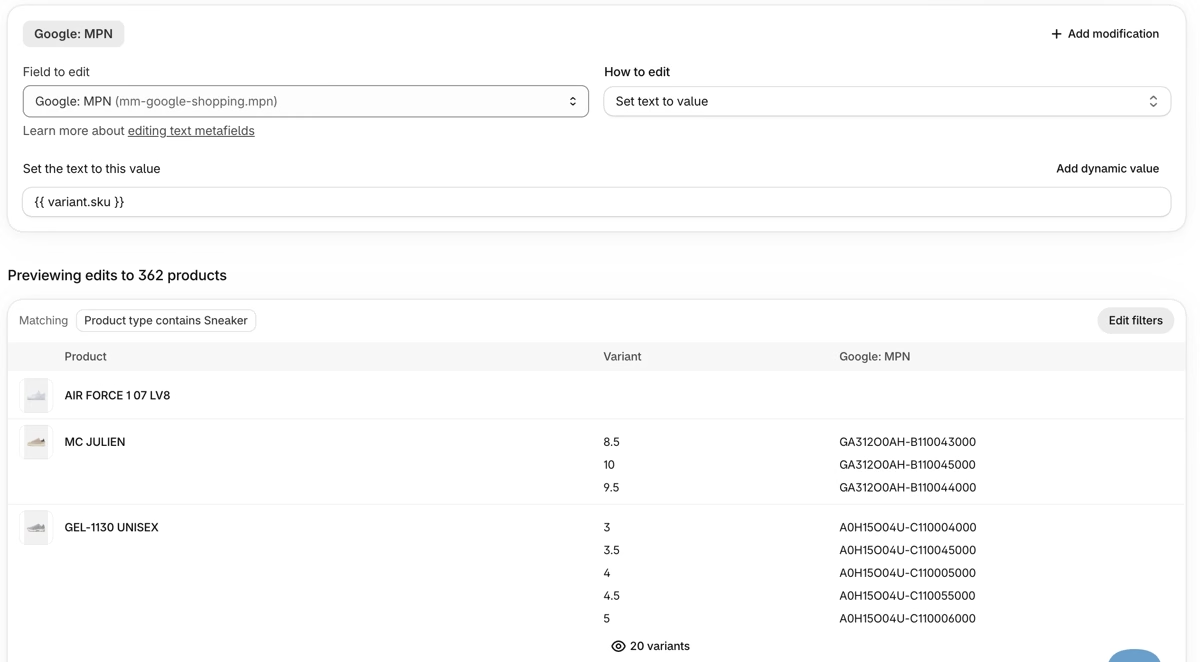
The same placeholders work for other fields: {{ variant.option1 }} for the size or color, {{ variant.barcode }}, or another metafield. That’s also how you copy a product metafield to all of its variants: set the variant metafield to {{ product.metafields.custom.your_key }}.
Edit only some variants
Filters on variant fields return only the matching variants, not every variant of the product. So you can edit only the size 12 variants, only the variants with no part number yet (the Variant Metafields filter with is not set), or only the out-of-stock ones, and the other variants stay as they are.
Add a value to a list without replacing it
For list metafields, Bulk Product Editor keeps the existing values when you add one:
- Add item to the end of the list (or the start) adds one value and keeps the others. If the value is already in a variant’s list, Shopify rejects the duplicate for that variant.
- Remove item(s) from the end of the list (or the start) removes a number of values from that end.
- Find and replace changes text inside the values. With an empty replacement it removes a value, but it matches text inside each value, so removing
Redalso changesDark Red. Check the preview. - Set from prefixed tags fills a list from the product’s tags, for example
Size=XLandSize=LbecomeXL, L. Every variant of the product gets the same list. See converting prefixed tags to list metafields.
A few list types, such as lists of numbers, can’t be edited in the app yet; the app shows a notice when you pick one.
Delete variant metafields
For text, number, boolean and list metafields, How to edit has Delete metafield, which removes the value so the field is empty again. See bulk deleting metafields.
How do you update variant metafields from a spreadsheet?
With Spreadsheet edit in Bulk Product Editor, you upload your own file and match rows to variants by SKU, Barcode/UPC or Variant ID, so a supplier file with only SKUs and part numbers works. Map each column to a variant metafield. Empty cells are skipped, and a cell with delete removes the metafield. The edit shows a preview and can be undone like an in-app edit.
Which way should you use?
| Product bulk editor | Variant bulk editor (link) | Product CSV | Flow | Bulk Product Editor | |
|---|---|---|---|---|---|
| Shows variant metafields |  |  | | One variant per run | |
| Filter which variants change | | | | Trigger only | |
| Value from another field (SKU, option) | | | | | |
| Add to a list without replacing it | | | | Build it yourself | |
| Spreadsheet matched by SKU | | | | | |
| Preview and undo | | | | | |
- A few variants: open each variant’s page and edit its metafields there.
- A few hundred variants with values you know: use the variant bulk editor link.
- Thousands of variants, values from other fields, lists, or a supplier file: use an app.
Variant metafield edits, filters, previews and undo are on every plan of Bulk Product Editor. The free plan edits up to 10 products per edit, and Basic ($30/month) removes the limit. See bulk editing metafields and all plans.
Frequently asked questions
Why can’t I see variant metafields in the bulk editor?
The bulk editor you open from the Products list is the product editor, and it only lists product metafields. Open the variant bulk editor with a link that has resource_name=ProductVariant and your metafield in edit=metafields.namespace.key.
Do I need a metafield definition to edit variant metafields in bulk?
Yes, for Shopify’s bulk editor and for Bulk Product Editor. Create the definition under Settings > Metafields and metaobjects > Variants first. A definition also tells Shopify the type, so the values are checked when you save them.
Can I edit variant metafields with Sidekick?
If Bulk Product Editor is installed, you can ask Sidekick something like “set the Google MPN on every variant to its SKU”. Sidekick makes a Bulk Product Editor preview for text, number, date, true/false and text list metafields, and you open it and click Run edit yourself. See using Sidekick with Bulk Product Editor.
Why does a metafield edit fail with “Owner subtype does not match the metafield definition’s constraints”?
The definition is limited to some product categories, and the product isn’t in one of them. Set the product’s category first, then edit the metafield. See error codes.

Related articles
Updating Shopify from a spreadsheet: what CSV import overwrites and how to update only what you need
Written by Ablestar

Can you undo a bulk edit in Shopify? How to recover and how to make bulk changes safely
Written by Ablestar

Timed sales on Shopify: compare-at prices vs automatic discounts vs scheduled price changes
Written by Ablestar