How to edit Shopify variants in bulk: add, rename, reorder and delete options (2026)
How to add, rename, reorder and delete variants and options across many Shopify products, what the admin and CSV import can do, and how to avoid the changes you can't take back.
Shopify lets you edit options and variants one product at a time, on the product page. To change them on many products, the documented native route is the product CSV, which has some traps: a renamed option value creates new variant IDs, and leaving out the option columns deletes the existing variants. A bulk editing app such as Ablestar Bulk Product Editor can add options and variants, rename them, reorder them and delete them across products from a filter, with a preview before each edit.
This guide goes through each job: what works natively, how to do it in the app, and which changes you can’t undo.
Shopify is also moving variant editing onto the product page. Plus stores get the new page automatically on December 12, 2026, and other stores follow gradually from December, so the admin steps below may look a little different in your store.
What are the limits on options and variants?
A product can have up to three options, such as Size, Color and Material, and up to 2,048 variants on any plan. Each variant is one combination of option values. Not every combination has to exist.
Going past 100 variants on a product can cause problems elsewhere. Shopify notes that some third-party themes and custom apps don’t support more than 100, and in Liquid product.variants returns at most 250 without pagination. We cover this in Shopify’s 2048 variant limit.
There’s also a limit for the whole store. If you have 500,000 or more variants and aren’t on Plus, Shopify lets you add up to 10,000 new variants a day with an app or a CSV file.
How do you add an option or a value to existing products?
On one product. In the Variants section, click Add another option, or click Edit next to an option and add a value. A new option gives every existing variant its default value. A new value on an existing option creates all the combinations for that value.
On many products with a CSV file. Shopify’s Products list has no bulk action for options or variants. In the product CSV, each variant is a row with the product’s handle and the columns Option1 name and Option1 value, and you turn on the overwrite option when you import. Be careful with three things:
- If you leave out the option columns, Shopify says “a new default variant is created and existing variants are deleted”.
- Shopify doesn’t document what happens to a variant that has no row in your file. Keep a row for every variant, and test on one product first.
- You can’t cancel an import after it starts, and Shopify has no undo for imports.
On many products with Ablestar Bulk Product Editor. Adding an option and adding variants are two separate edits:
- Filter the products, click Edit products, and under Field to edit select Add Product Option. Enter the Option name and Option value. Every existing variant gets that value, and no new variant is created. A product that already has this option name or already has three options shows an error in the preview and is left as it is.
- Run a second edit with Add Variants. Click Add variant and enter a value for each option, plus the price and compare-at price. You can separate several values with commas.
All the products in an Add Variants edit need the same option names in the same order. If they don’t, a banner tells you and shows two examples. Fix those products first, or filter them into a separate edit.
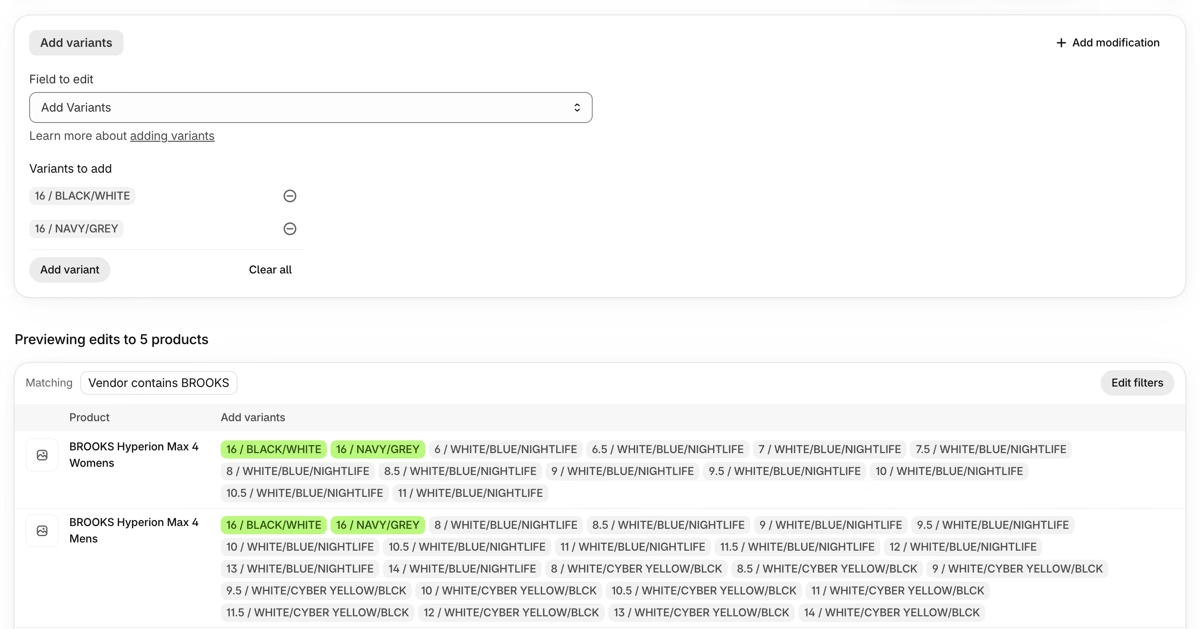
The new variants all get the same price, so if prices differ by product, filter by price or type and run one edit for each group. The edit doesn’t set SKUs, barcodes or stock. Afterwards, run another edit filtered on the new option value to set those, and check inventory tracking on a new variant. See adding product options in bulk and adding variants.
How do you add variants when only some combinations exist?
Often a new value should only go with some of the other values. A new size might only come in one color, for example.
On the product page, Shopify can create a single variant, which doesn’t create the other combinations. It can also duplicate variants in bulk within the product, and it skips combinations that already exist.
In Ablestar Bulk Product Editor, Add Variants creates every combination of the values you enter that a product doesn’t have yet. It doesn’t look at which values each product already sells. Say you add one new size with the colors Black, Navy and Olive. A product that only comes in Black also gets the size in Navy and Olive, so it now has two new colors.
To avoid that, enter one color per edit and filter on the products that sell it. Use Option 2 Value equals Black if Color is your second option, then run a separate edit for Navy. Check the preview, which lists the variants each product will get.
How do you rename an option or a value across products?
On one product. Click Edit next to the option and change its name. Shopify’s steps don’t describe renaming a value on the product page in as much detail, so check the result on the storefront.
Values connected to a category metafield. This is the one native rename that reaches many products at once. Edit the entry under Content > Metaobjects, and Shopify says the change will update everywhere the color is connected.
With a CSV file. You can change the value in the Option1 value column, but Shopify says this “deletes existing variant IDs, and creates new variant IDs”. Anything that points to the old IDs can break, such as links from other apps, subscriptions or feeds.
With Ablestar Bulk Product Editor. The fields are Option 1 Name, Option 2 Name and Option 3 Name, and Option 1 Value, Option 2 Value and Option 3 Value. They work by position, not by name. If “Colour” is the first option on some products and the second on others, that takes one edit for each position:
- Add the filter Option 1 Name equals Colour.
- Under Field to edit, select Option 1 Name. Under How to edit, select Set text to value and enter the new name.
- Check the preview and run the edit. Repeat with Option 2 Name for the other products.
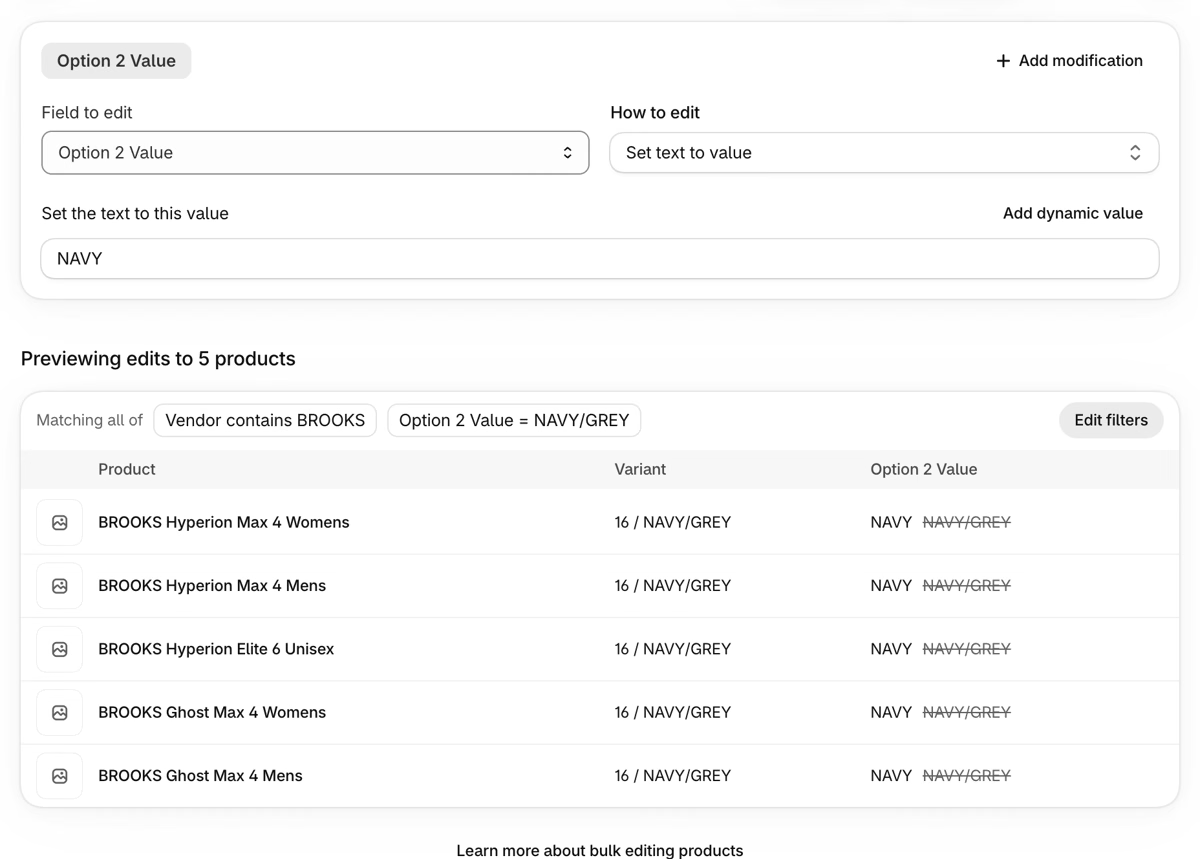
For a value, filter on the exact value and use Set text to value. Find and replace works on part of the text, so replacing “L” with “Large” also turns “XL” into “XLarge”. Variant IDs stay the same in these edits because the app updates the existing variants.
How do you reorder options and set the first variant?
On one product. Drag the options and values by their handles in the Variants section. Shopify groups variants by the first option, and the order of options and values decides how variants are listed and selected.
Shopify has no “default variant” setting that we could find in its documentation. The usual way is to put the variant you want first. What shoppers see selected still depends on your theme: many themes use the selected or first available variant, so a first variant that’s sold out can be skipped.
With Ablestar Bulk Product Editor. Two actions cover this, and neither is available in a spreadsheet:
- Reorder product options changes the order of the options on every selected product, by position. This can also change which variant comes first.
- Reorder variants sets the order of the values. Drag values in the list for each option, or use Sort by with Alphabetical, Numeric or Size (XS, S, M ..). To make one value the first variant, drag it to the top of its list. Values that aren’t in your list go to the end.
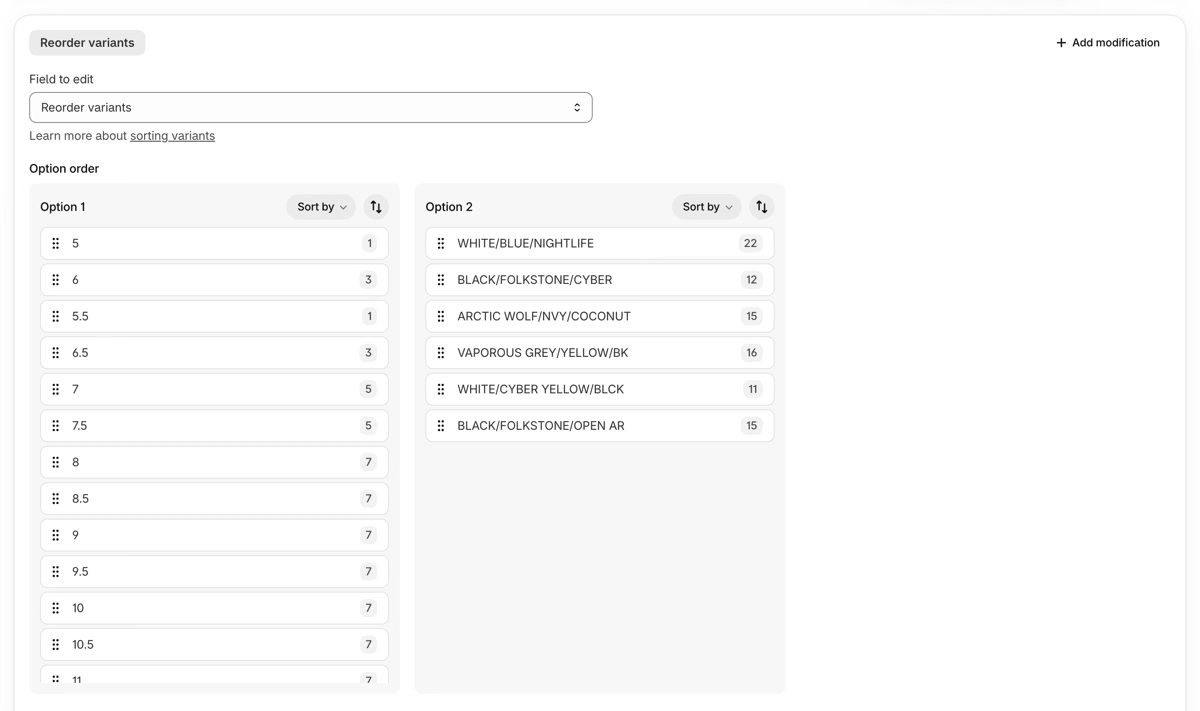
Reorder variants only changes the order of the variants. Check a product page afterwards to see how your theme shows it, because a theme can list option values in a different order.
How do you delete variants by option value?
Before you delete anything, think about whether you need to. If you only want to stop selling a variant, Shopify suggests managing variant publishing instead, which keeps the variant for your history.
On one product. Click Edit next to the option, then the trash icon next to the value. To delete several variants, select them and use a bulk action on the product page.
Across products. Shopify documents no native way to do this from the Products list. Shopify Flow has a Delete product variant action, but it works on one variant per run and needs a variant trigger, such as a variant going out of stock.
With Ablestar Bulk Product Editor. Go slowly with this one, because it’s the one edit you can’t take back:
- Filter on the option name and the value together, with Match all filters: Option 1 Name equals Size, and Option 1 Value equals the value you want to remove. The value filter works by position, so if some products have Size as the second option, run a separate edit for them with Option 2 Name and Option 2 Value.
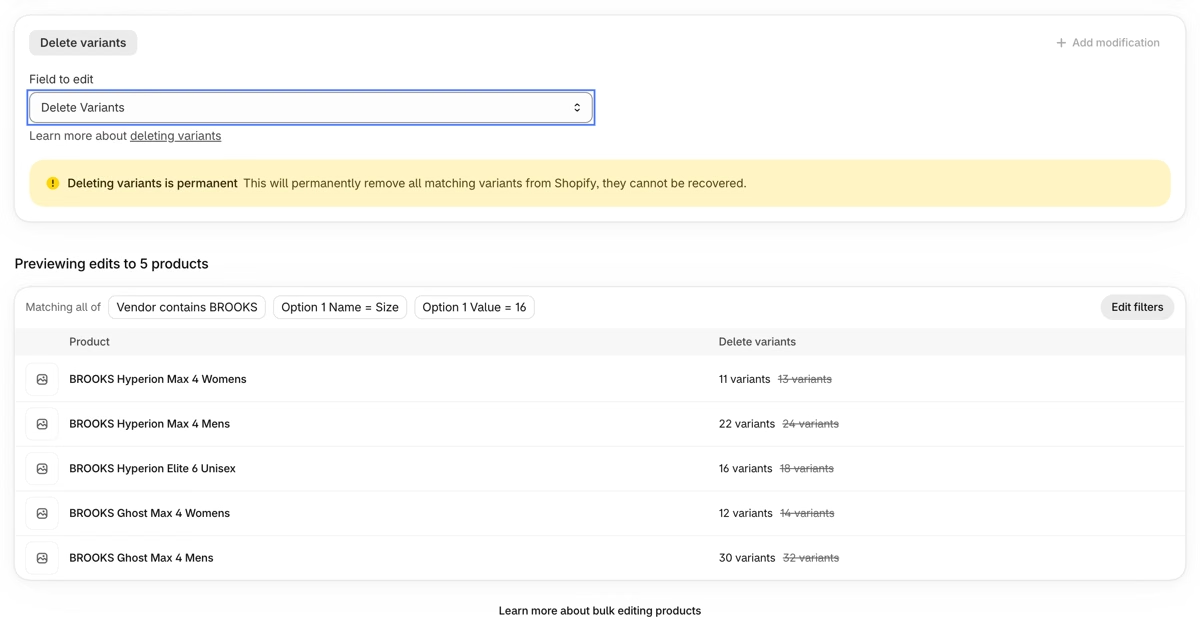
- Under Field to edit, go to Danger Zone and select Delete Variants.
- Check the preview. For each product it shows how many variants will be left, next to the current number crossed out, so 11 next to a crossed-out 13 means two variants will go.
- Click Delete variants and confirm.
Two warnings:
- The filter decides what’s deleted. Only matching variants are removed, but a filter on a product field alone, such as vendor, matches all the variants of those products. Always include an option filter.
- There’s no undo. The edit page has no Undo button for a delete, and the edit can’t be scheduled. Export your products first if you may need the details later.
You can also delete variants from a spreadsheet: add a Delete Variants column, write delete in the cells, and use a variant-level identifier such as the variant ID. This can’t be combined with other columns in the same edit.
Can you do this from your own spreadsheet?
In Ablestar Bulk Product Editor, it depends on the job:
| Job | In a spreadsheet edit |
|---|---|
| Change option values or option names |  Use the Option 1 Value and Option 1 Name columns. Identify values by variant ID, a unique SKU or a barcode. With a product-level identifier, all variants get the same value. |
| Add variants | On the Create products page, with Add/update variants to existing products (beta). It needs a product identifier, Option 1 Value and Price. This import has no undo. |
| Delete variants |
Use the Delete Variants column, as above. |
| Add an option |  In-app only. |
| Reorder options or variants |
In-app only. |
For more on working from a file, see updating Shopify from a spreadsheet.
Which variant edits can you undo?
Shopify has no general undo for bulk edits or CSV imports, and it doesn’t describe a way to restore a deleted variant. In Ablestar Bulk Product Editor, what Undo does depends on the edit:
| Edit | Undo | What it does |
|---|---|---|
| Option N Name, Option N Value | | Sets the old name or value again. |
| Reorder variants | | Sets the old variant order again. |
| Reorder product options | | Reliable for swapping two options. With three options, check the order after the undo. |
| Add Variants | | Deletes the variants the edit created, even if they’ve had sales or stock since then. |
| Add Product Option | | Removes the option. This only works while the option has one value, so undo Add Variants first. |
| Delete Variants | | Permanent. |
| Add/update variants to existing products (beta) | | Import with no undo. |
Undo puts back the values logged by that edit. It doesn’t check whether a newer edit changed the same products, so when you undo several edits, start with the newest and wait for each one to finish.
A safe order of work for any of these:
- Filter down to the products you mean to change, and check the count.
- Run the edit on two or three products. Check the admin and a product page, including the storefront’s option selectors.
- Undo the test if you need to, then run the edit on the rest.
- Check any app or feed that uses variant IDs, SKUs or option names.
See how to undo a bulk edit in Shopify for recovering from a change that went wrong.
Which way should you use?
| Shopify product page | Product CSV | Flow | Bulk Product Editor | |
|---|---|---|---|---|
| Works across many products | | | One variant per run | |
| Add an option | | Rewrites variant rows | | |
| Add variants | | Add rows | | |
| Rename a value and keep variant IDs | Not documented | | | |
| Reorder options | | Can fail | | |
| Delete variants by option value | | Not documented | | |
| See changes before saving | | | | |
| Undo | | | | Most edits, not deletes |
- A few products: edit them on the product page.
- Many products, and you’re comfortable with CSV files: the product CSV can add variants, but keep a copy of your export and test first. Avoid it for renames if other apps use your variant IDs.
- Many products, or a change you may want to take back: use an app.
All of these actions are on every plan of Ablestar Bulk Product Editor. The free plan edits up to 10 products per edit, and Basic ($30/month) removes the limit. See all plans.
Frequently asked questions
Can I get a deleted variant back?
Not as the same variant. Shopify’s help pages describe no way to restore one, and Bulk Product Editor has no undo for deletes. You can create a variant with the same option values again, but it’s a new variant with a new ID, so check its price, SKU, stock and image.
Can Sidekick add or delete variants?
Shopify says Sidekick can draft changes to several products, with up to 50 changes per set, and you review them before you publish. Shopify doesn’t say whether that includes adding or deleting variants, and published changes can’t be undone automatically.
Do new variants need their own images?
Not always. A variant can have one image, which has to come from the product’s media. In Bulk Product Editor you can give a Variant image URL in Add Variants, and it’s used for all the new variants in the edit. See showing the right variant images.
How do I edit other variant fields in bulk?
Prices, SKUs, barcodes, weights and metafields are normal bulk edits once the variants exist. See how to bulk edit prices and variant metafields in Shopify.
Related articles
Image alt text for Shopify products: what to write and how to fix a whole catalog (2026)
Written by Ablestar
How to edit Shopify metafields in bulk: product, variant and list metafields (2026)
Written by Ablestar
Shopify product tags in bulk: add, remove, and clean up tags without overwriting (2026)
Written by Ablestar