

How to automate bulk edits in Shopify: schedules, repeats and product rules (2026)
How to make product changes happen by themselves in Shopify. One edit at a set time, edits that repeat every day or week, and rules that run when a product is created or updated, with Shopify Flow or a bulk editing app.

Some product changes have to happen again and again, or at a time when nobody is at the computer. Hide products that sold out. Tag new arrivals. Start a price change overnight and reverse it when the promotion ends. Shopify’s own tool for this is Shopify Flow. It’s free and works well for tags, status and publishing, but most other fields need the Admin API. A bulk editing app such as Ablestar Bulk Product Editor can run its bulk edits at a set time or on a repeating schedule, and can apply rules when products are created or updated.
This guide explains the three kinds of automation, what Shopify can do natively, and how to set each one up so it doesn’t surprise you later.
Three kinds of automated edit
It helps to know which kind of automation you need before you pick a tool:
- A one-time edit at a set time. The change runs once, at a date and time you choose, and can be reversed at a second time. Sales and product launches are the usual examples.
- A recurring edit. The same edit runs again every hour, day, week or month, on the products that match its filter at that moment. Use it for clean-up jobs that are fine to run on a timer.
- A rule. The edit runs when something happens to a product, such as when it’s created or updated. Use it when the change has to follow the product right away.
The difference between the last two matters. A recurring edit runs on time even if nothing changed, and a product that changed a minute after the last run waits until the next one. A rule reacts to each product change, but a product that never changes never triggers it.
What can Shopify do without an app?
Shopify Flow is a free app on the Basic, Grow, Advanced and Plus plans. A workflow starts with a trigger, checks conditions and runs actions.
- Triggers. For products there are Product created, Product updated, Product status updated and Product deleted, plus variant triggers such as out of stock, back in stock and inventory quantity changed. Product updated watches up to five fields that you choose. The Scheduled time trigger starts a workflow at a set time and can repeat it, at most once every 10 minutes.
- Actions. Flow has built-in actions to add and remove tags, add products to collections and remove them, publish and unpublish, change the status, and set or remove metafields. There’s no built-in action for prices, titles, descriptions, vendors or most other fields. For those you use Send Admin API request with a GraphQL mutation.
- Many products at once. A scheduled workflow finds products with Get product data, which returns up to 100 products per run, and a For each loop can’t have more than 1,000 items.
- Checking your work. You can test a workflow before you turn it on. The test stops at the first action that would change data. Runs are kept for 14 days, and there’s no undo for the changes a workflow made.
- Loops. Shopify warns that a workflow that changes a product after a product update trigger can run in an infinite loop. Add a condition that stops it, such as “only if the product doesn’t have the tag yet”.
For sales, Shopify also has automatic discounts with start and end dates, Rollouts for catalog prices, and Launchpad on Plus. We compare those in timed sales on Shopify, so this guide doesn’t repeat them.
Flow is a good fit for tags, status and publishing, and for teams that are comfortable with the API. It gets harder when the change is a price, a text field or a value built from other fields, or when you want to see the result for each product before it runs.
How do you schedule one bulk edit for later?
Natively. Flow’s Scheduled time trigger can start a workflow at a date and time, and you need a second workflow to change things back. For prices, see the options in timed sales on Shopify.
With Ablestar Bulk Product Editor. Set up the edit as usual: filter the products, choose the field and the change, and check the preview. Then click Schedule edit instead of running it. You can set a start time, an undo time, or both, to the minute. The dialog shows the time zone it uses, which is your browser’s time zone. This works for in-app edits and for edits from a spreadsheet, on every plan. The free plan edits up to 10 products per edit.
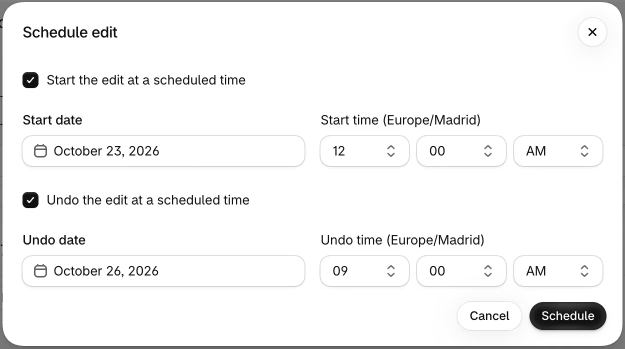
A few things to know:
- The filter runs again at the start time. The edit changes the products that match the filter when it starts, not the products you saw in the preview. A product that stopped matching in the meantime is left out, and a new product that matches is included.
- The undo puts back the values from before the edit. It uses the edit’s own log, so each field gets the value it had before, not a calculated reverse. For tags, only the tags the edit added or removed are changed back. A price you changed by hand while the edit was live is replaced by the old value.
- You can’t change the edit itself after you schedule it. While the start time is still in the future, you can change the times or cancel the edit in History. To change the fields or values, cancel it and schedule a new one. Cloning the old edit is the quick way. Set the undo time when you schedule the edit, rather than adding it later.
- Delete edits can’t be scheduled. Deleting products or variants always runs right away.
All scheduled edits are in History under Scheduled edits, sorted by start time. See scheduling an edit and changing a scheduled edit.
How do you run the same edit on a schedule?
Natively. Use Flow’s Scheduled time trigger with Get product data, then a For each loop with the action you need. Remember the limit of 100 products per Get product data run, and that fields without a built-in action need Send Admin API request.
With Ablestar Bulk Product Editor. Set up the edit and the filter, check the preview, then click Recurring edit instead of running it. Give it a title and choose:
- Frequency: hourly, every 2 hours, daily, weekly or monthly.
- Time to run: in 15-minute steps, for daily, weekly and monthly edits.
- Time zone: your store’s time zone by default. You can choose another one.
- Status: active or paused.
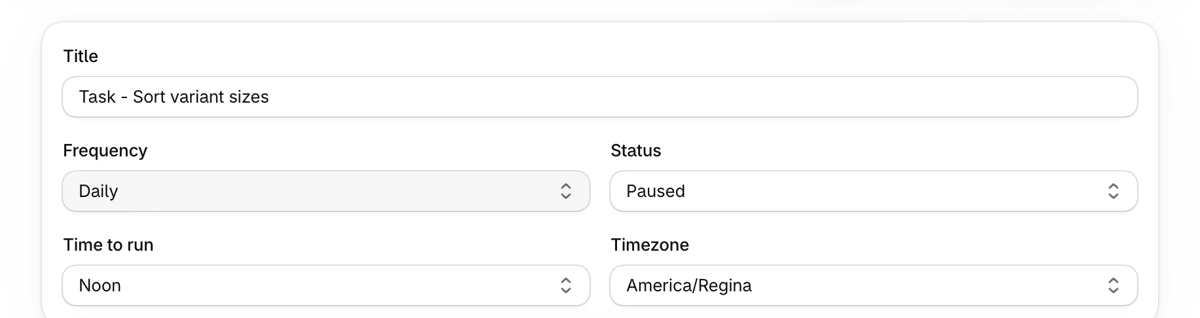
Each run searches again with the filter, so new products that match are included without any change to the recurring edit. Products that already have the new value are skipped. Each run is its own edit in History, with a log of what changed and an Undo. Runs start within a few minutes of the time you chose, not on the exact minute. A run is skipped if the previous run of the same recurring edit is still going.
You find all recurring edits under Automations > Recurring edits. There you can change the title, the schedule and the status, run one now, or delete it. You can’t change the filter or the change after you create it. To do that, delete the recurring edit and create a new one. See how to create recurring edits.
Recurring edits are on the Advanced plan ($60/month, up to 5) and the Professional plan ($120/month, up to 20).
Example: keep sold-out products off the Online Store
Many stores don’t want sold-out products in collections and search, but want them back as soon as stock comes in. With a recurring edit:
- Filter on products where inventory is tracked, selling when out of stock is off, and the inventory quantity is less than 1.
- Choose Published to Online Store and set the products to not published.
- Make it a recurring edit that runs every hour.
That only hides products. To show them again, you need a second recurring edit with the opposite filter, or a product rule with a negative modification (below). See hiding out of stock products with a recurring edit.
How do you change products when they’re created or updated?
Natively. Use Flow’s Product created or Product updated trigger with a condition and an action. This is the right tool when the action is one of Flow’s built-in ones, such as adding a tag or changing the status.
With Ablestar Bulk Product Editor. A product rule applies changes to each product that matches its filter. You choose when it runs:
- When a product is created. On the Advanced and Professional plans.
- When a product is updated or created. On the Professional plan.
To make one, search for the products on the Products page and click Create rule, or start from a template under Automations > Product rules. There are templates to tag products that are on sale, hide sold-out products from the Online Store and POS, add the vendor to the SEO title, and set products with a price of 0.00 to draft.
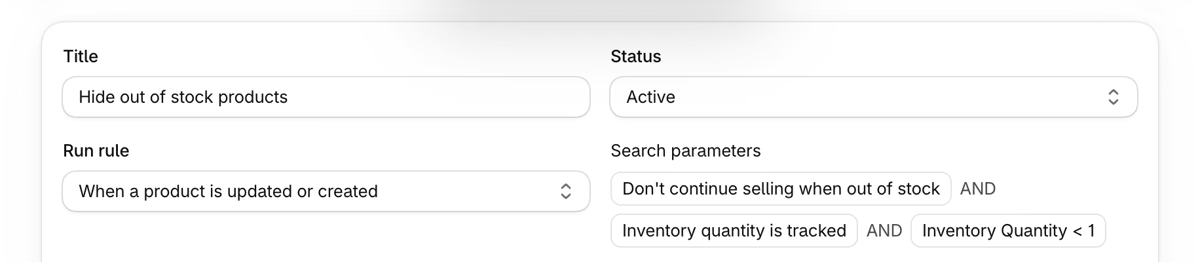
A rule has two lists of changes:
- Product modifications run when a product matches the rule.
- Negative modifications run when a product doesn’t match. This is how one rule hides a product when it sells out and publishes it again when stock comes back.
A new rule only acts on products as they’re created or updated. To apply it to the products you already have, click Run all on the rule. Rules have no preview step, so check the products in the search before you create the rule, save it as Paused first if you want to look at it again, and look at the first changes in History. History groups a rule’s changes into one edit per rule per day, and each of those can be undone.
Rules can change most of the fields that in-app edits can, but not all of them. Market prices and catalog publishing, shipping profiles and deleting products are some of the edits a rule can’t do. Product rules are on the Advanced plan (up to 5) and the Professional plan (up to 20). See an introduction to product rules, using a template and creating a custom rule.
Rules that change the field they check
Think about what the rule does to a product the second time. A rule that adds “by Acme” to the end of every title runs again when the product is next updated, and the title becomes “by Acme by Acme”. Two ways to avoid this:
- Filter on the result. Only match products whose title doesn’t contain the text yet.
- Mark products as done. Add a tag in the same rule, and filter on products without that tag. See running a rule against a product only once.
Two rules can also undo each other’s work, for example when one adds a tag and another removes it. Bulk Product Editor pauses a rule that changes the same product more than 24 times in one day.
Recurring edit or rule?
| Recurring edit | Product rule | |
|---|---|---|
| Runs | On a timer | When a product is created, or created or updated |
| Products that don’t change | Checked on every run | Only with Run all |
| Delay after a change | Up to the next run | Shortly after the change |
| Preview | Yes, when you set it up | No, check the search first |
| Good for | Clean-up and checks that can wait | Changes that must follow the product |
Can you update products from a file on a schedule?
Natively, no. A product CSV import in Shopify is a manual upload each time.
With Ablestar Bulk Product Editor. An inventory sync gets your spreadsheet from a URL, Google Sheets, Google Drive, Dropbox or an FTP, FTPS or SFTP server on a schedule. You pick the days of the month or week and the hours, in your store’s time zone. Despite the name, it isn’t only for stock. Each run is a normal spreadsheet edit with the columns you mapped, so it can also update prices, compare-at prices, costs, tags, status and metafields. Basic includes 1 sync that runs once a day, Advanced 5 syncs with up to 4 runs a day, and Professional 10 syncs with up to 12 runs a day. See inventory sync and configuring an inventory sync schedule. For what the file has to look like, see updating Shopify from a spreadsheet.
The same works the other way: a recurring product export builds a file on a schedule and puts it at a URL for a marketplace or a reseller.
Before you turn an automation on
- Run it once by hand first. Set up the edit, check the preview, run it, and look at a few products in the admin. Then make it recurring or turn it into a rule.
- Start with a narrow filter. One vendor or one collection first, then widen it.
- Check the time zone. One-time scheduled edits use your browser’s time zone. Recurring edits use the one you pick, which is your store’s time zone by default.
- Keep one automation per field. Nothing stops a rule and a recurring edit from setting the same field, and the last one to run wins.
- Look at the results in the app. Automated edits don’t send an email when they finish or fail. Check History and the run log of the recurring edit after the first few runs.
- Undo soon if something is wrong. The logs of automated edits are kept for about 30 days, and after that a run can’t be undone. See undoing a product edit and can you undo a bulk edit in Shopify?
Which way should you use?
| Shopify Flow | Ablestar Bulk Product Editor | |
|---|---|---|
| Cost | Free | Scheduled edits on every plan. Recurring edits and rules from Advanced ($60/month) |
| Fields | Tags, status, publishing, collections and metafields. Other fields through the Admin API | All in-app and spreadsheet edit fields. Rules support most of them |
| Products per run | Up to 100 per Get product data | No fixed limit on paid plans |
| Check before it runs | Test run that stops at the first change | Preview of every product (not for rules) |
| Undo | No | Each run, for about 30 days |
| Runs when products change | Yes | Yes, with product rules |
- A tag or status change when a product is created or updated: Flow does it for free.
- A price, text or metafield change on a schedule: a recurring edit in a bulk editor, without API work.
- A change you may need to take back: use a tool that keeps an undo for each run.
Frequently asked questions
Can Shopify run a bulk edit every day by itself?
Shopify Flow can, with the Scheduled time trigger, for the fields it has actions for: tags, status, publishing, collections and metafields. For other fields you need the Admin API in Flow, or an app with recurring edits.
Do automated edits include products added after I set them up?
In Bulk Product Editor, yes. Scheduled edits, recurring edits and product rules all use the filter when they run, not a fixed list of products.
Can I stop an automation without deleting it?
Yes. Recurring edits and product rules have a Paused status, and a scheduled edit can be cancelled before it starts. In Flow, turn the workflow off.
What happens to my automations if I uninstall the app?
Bulk Product Editor turns off all recurring edits, product rules, inventory syncs and scheduled exports. They stay off if you install the app again, so turn back on the ones you still need.

Related articles
How to edit Shopify variants in bulk: add, rename, reorder and delete options (2026)
Written by Ablestar
Image alt text for Shopify products: what to write and how to fix a whole catalog (2026)
Written by Ablestar
How to edit Shopify metafields in bulk: product, variant and list metafields (2026)
Written by Ablestar